iPhones with time get cluttered and become low on space.
Every app you install on your iPhone creates app cache. As you use the app this cache keeps on building and using lots of memory space.
If you have a huge list of apps installed on your iPhone, the app cache created by them will occupy a significant amount of storage.
If you have an iPhone with only 32GB or 64GB storage, you will soon run out of storage.
As you know, iPhones don’t come with an external SD card slot. There is nothing much you can do to extend the storage.
You may look up to clear the app cache on your iPhone so you can make some storage space available.
But unlike Android phones, iPhones don’t have a straightforward option to clear the app cache.
The only way forward is to delete the app and reinstall it when needed, but doing so takes a lot of time and can also clean the data you don’t want to delete.
Thankfully, some possible workarounds are available to clear the app cache on iPhone without deleting the app .
We have explained all of them in this article.
- What is App Cache?
- How To Clear App Cache On iPhone Without Deleting App 1. Restart iPhone 2. Offload App 3. Clear Cache From Specific Apps on iPhone Clear Spotify Cache on iPhone 4. Clear Browser Cache On iPhone 1. Clear Cache Of Safari On iPhone 2. Clear the Cache Of Google Chrome On the iPhone 5. Use Third-Party Apps To Clear iPhone Cache Final words
What is App Cache?
An app cache is a piece of information or data collected by different apps to improve performance.
A cache may be data such as images, audio, files, or browsing history.
This cache helps apps to load faster.
The app cache increases whenever you use the app and fills up your iPhone storage slowly.
It puts an extra load on your iPhone, making it slow and buggy.
How To Clear App Cache On iPhone Without Deleting App
Let’s look at all the possible ways to clear the app cache on iPhone without deleting the app.
1. Restart iPhone
The very first thing you can do to clear the app cache on your iPhone is to give it a restart.
It may sound idiotic, but restarting your iPhone can clear the app cache, and temporary files and free up storage.
Below are the steps to restart an iPhone.
Press and hold the Power and Volume Up or Down buttons together for a few seconds. It will bring the Power menu to the screen.
Swipe the Slide to Power off option. It will turn off your iPhone.
Wait for at least 30 seconds and then press and hold the Power button for a couple of seconds to restart your iPhone.
2. Offload App
Although iPhone doesn’t have an option to clear the app cache to free up storage, Apple has provided a solution called Offload App.
Basically, offloading the app free up all the storage used by the app while keeping its document and data intact.
So, if you are running out of storage. Offloading, an app on iCloud will help you free some storage.
You can reinstall the app whenever you want to reinstate the app data. Below are the steps to offload an app on iPhone.
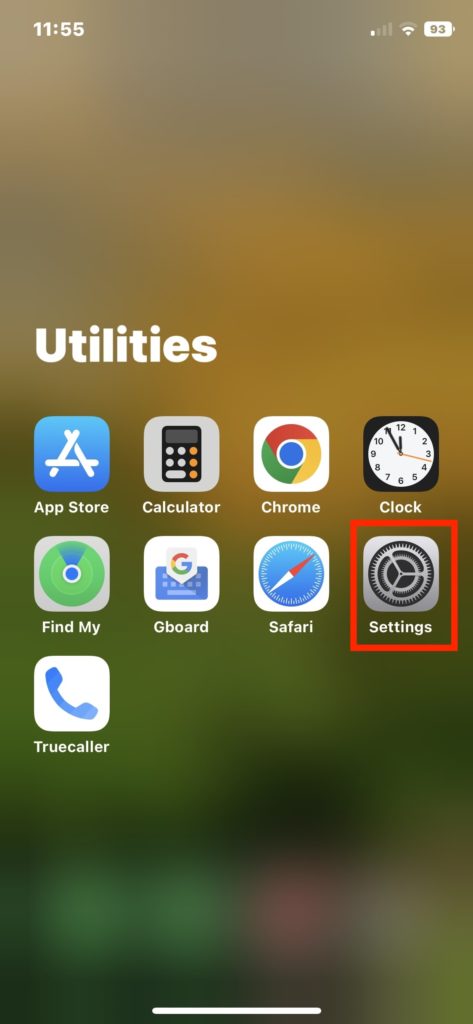
- Launch the Settings app on your iPhone.
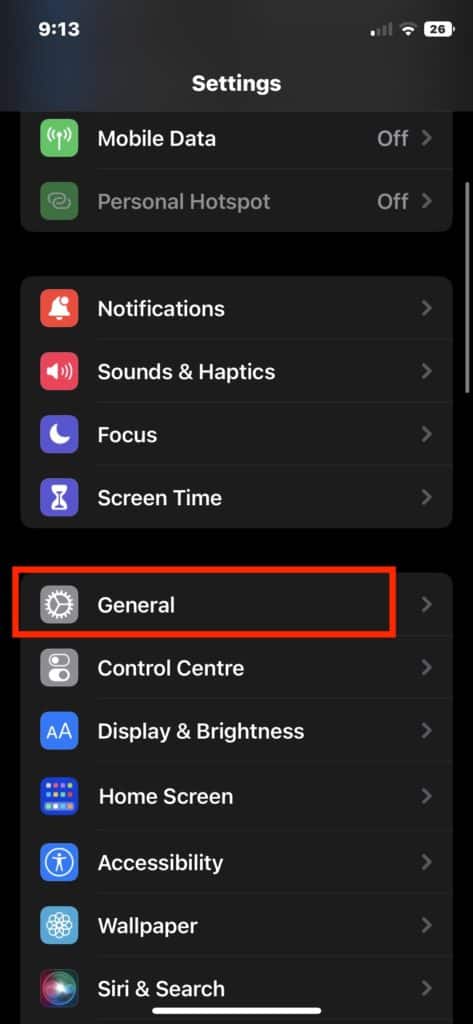
- In Settings, scroll down and tap on General.
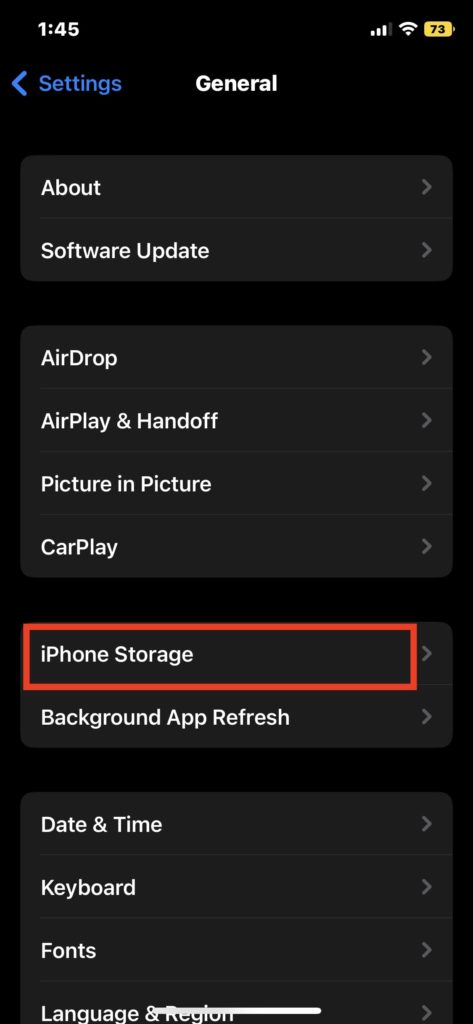
- Now, go to iPhone Storage.
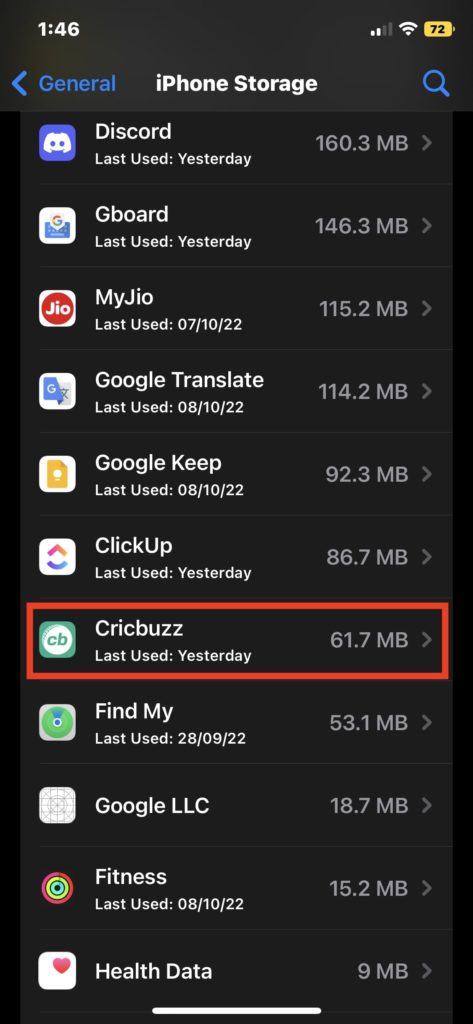
- On the iPhone Storage page, you will find a list of apps installed on your iPhone. Scroll down and select the app which you want to offload.
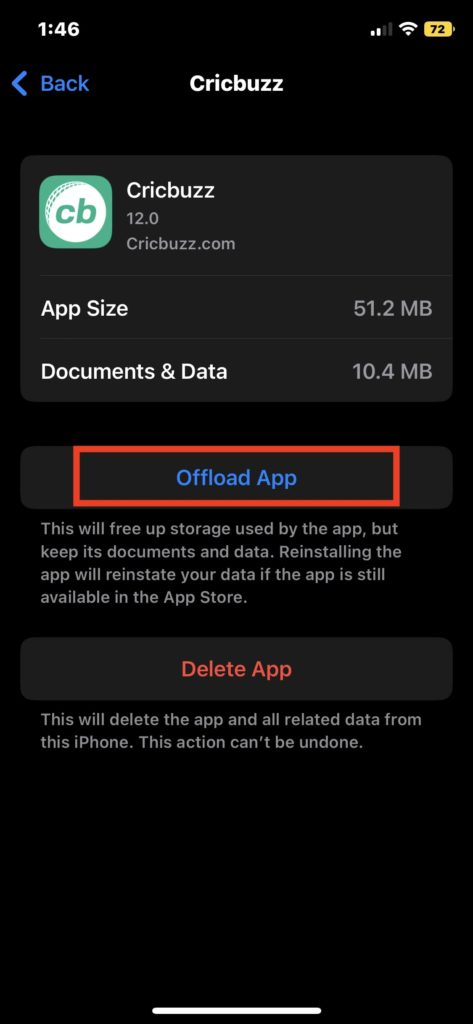
- On the app screen, tap on the Offload App option.
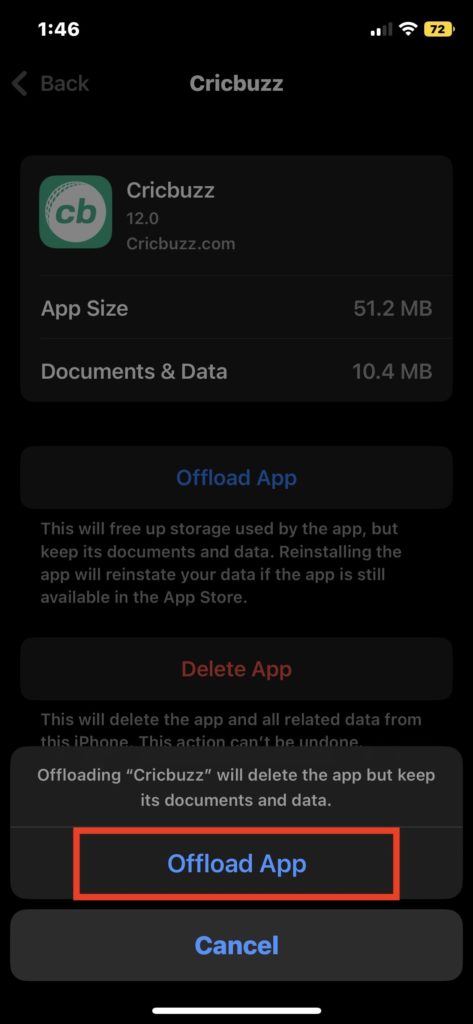
- A pop-up will appear on the screen tap on Offload App to give the confirmation.
Pro Tip: You can also enable Offload Unused Apps option. When enabled, it will automatically offload less used apps when you run out of storage.
Now the apps that are offloaded and will show the iCloud symbol next to them .
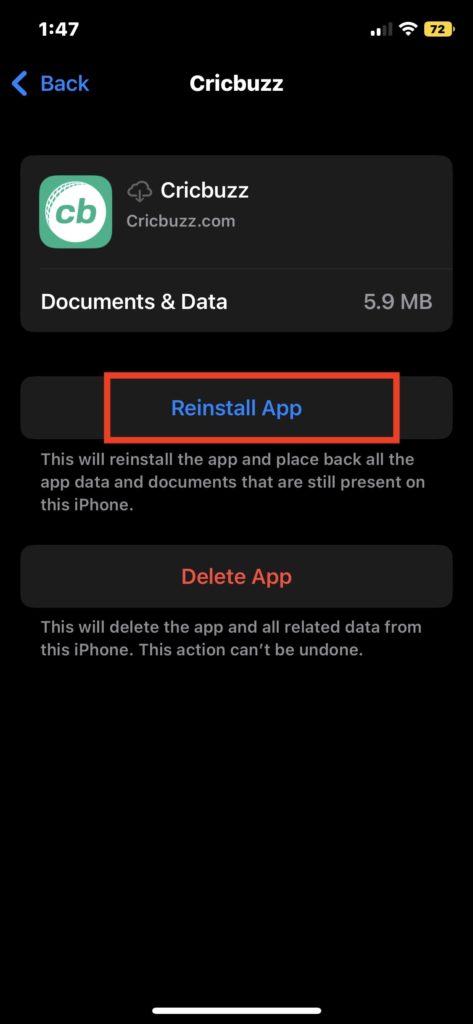
When you want to reinstall the offloaded app, follow the above steps and tap on the Reinstall App option.
3. Clear Cache From Specific Apps on iPhone
Unlike Android, there is no option available to clear the app cache on iPhone.
However, many apps such as Safari, Snapchat, and Spotify have a built-in option to clear the cache. You can check if the other apps installed on your iPhone feature a similar option.
As an example, we have provided steps for how you can clear the cache of Spotify on your iPhone.
Clear Spotify Cache on iPhone
Follow the below steps to clear app caches from Spotify.
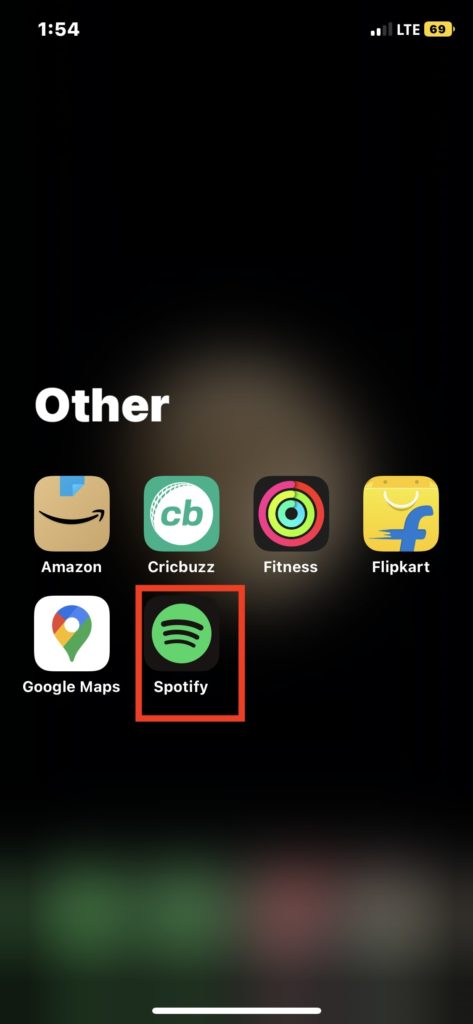
- Open Spotify on your iPhone.
- Click on the gear icon in the top right corner of the Spotify app.
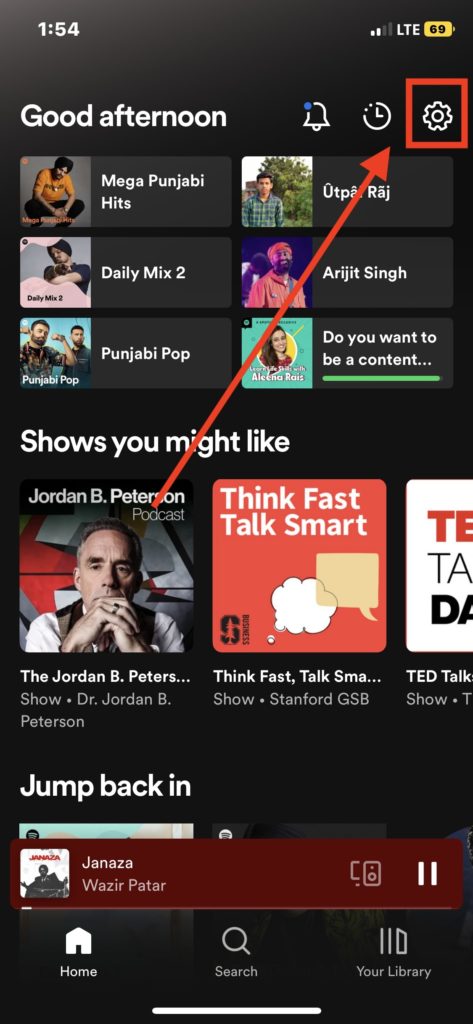
- Now, scroll down and tap on the Storage option.
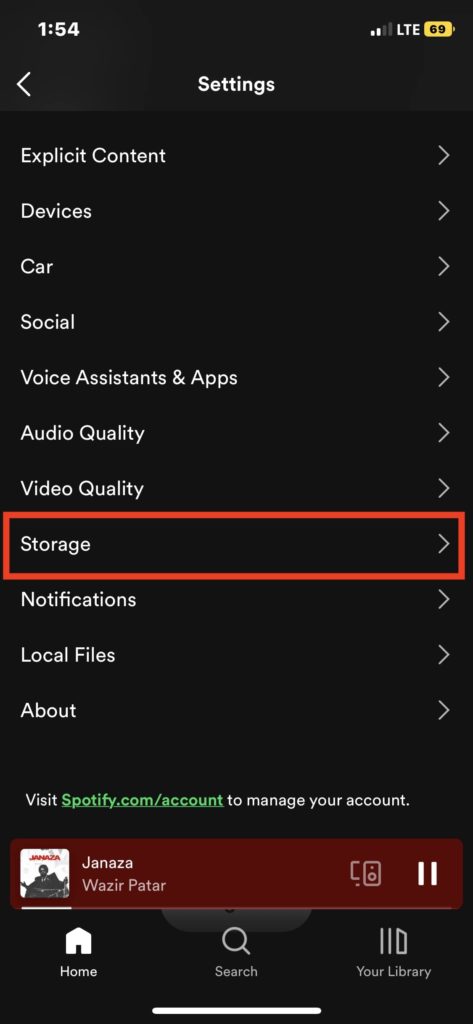
- Under Storage , tap on Clear Cache .
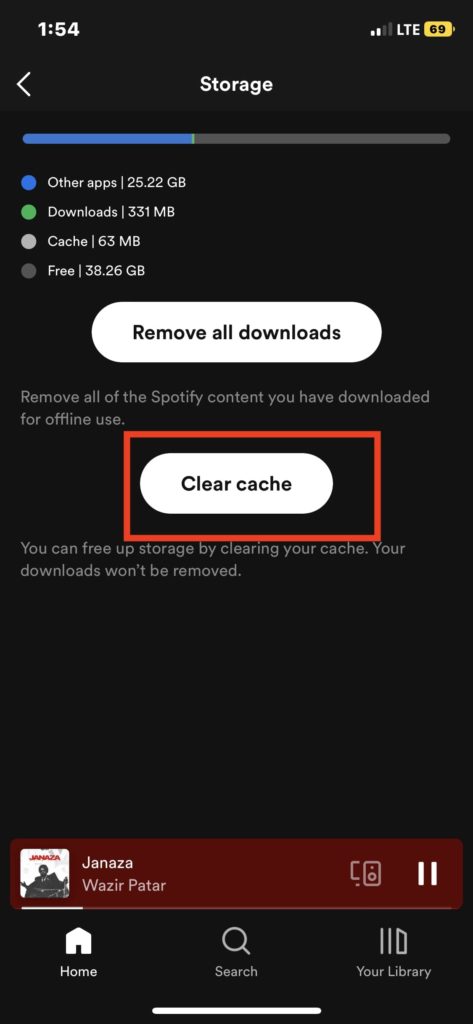
- A small confirmation window will appear on the screen click on Clear cache .
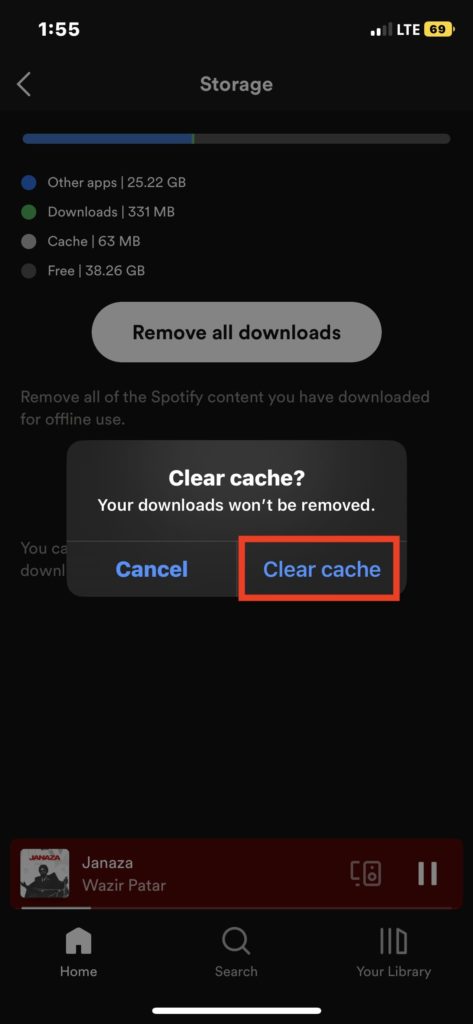
4. Clear Browser Cache On iPhone
The web browser on your iPhone also caches several files. With time this can take up lots of space. You can clear the cache from a web browser in easy steps on your iPhone.
1. Clear Cache Of Safari On iPhone
Unlike Google Chrome, Safari doesn’t allow the clearing app cache within the app. However, you can clear the app cache from the Settings app. Follow the below steps to do so.
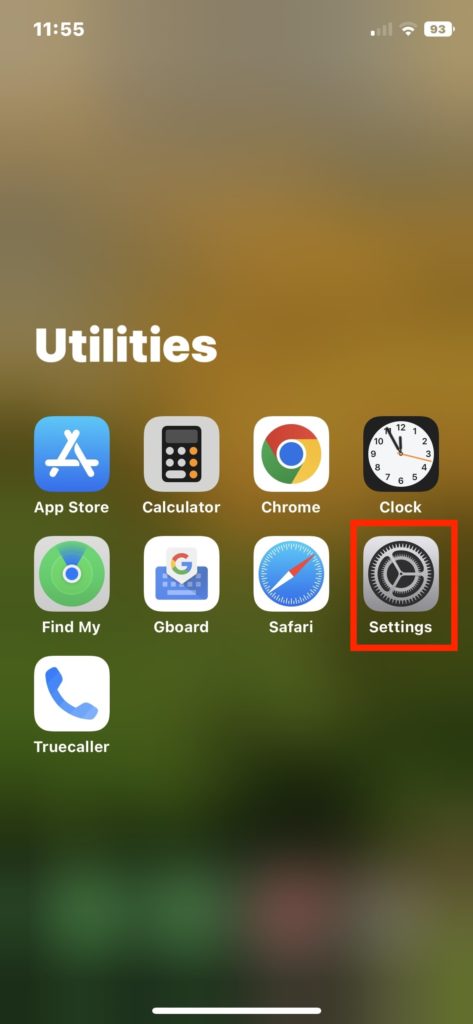
- Open the Settings app on your iPhone.
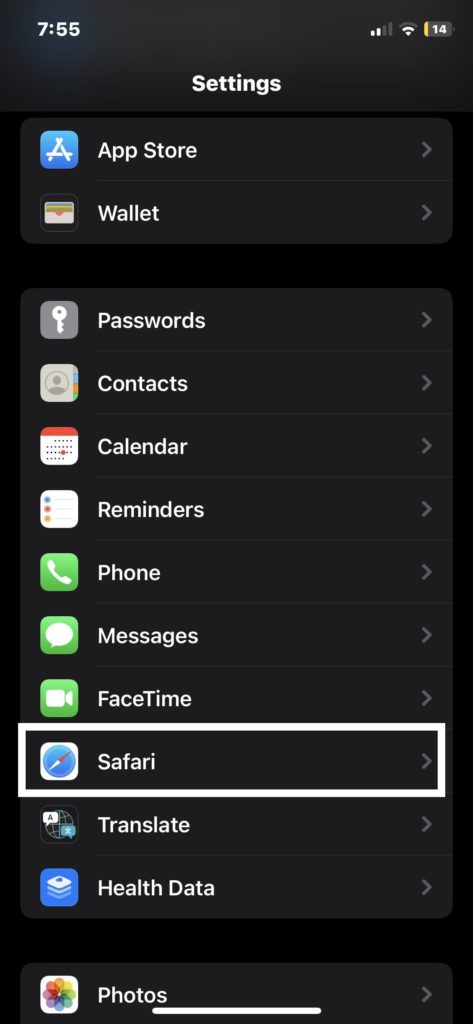
- Under Settings , scroll down and tap on Safari .
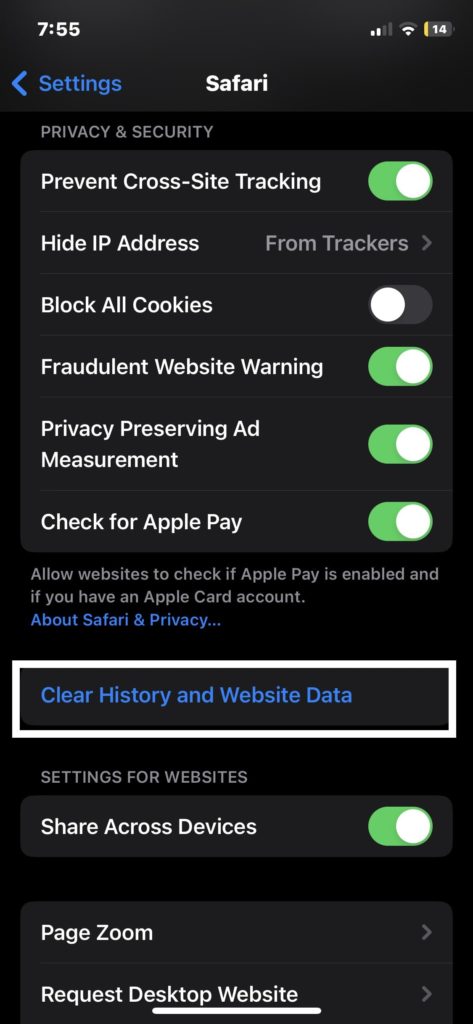
- In Safari , scroll down and tap on Clear History and Website Data .
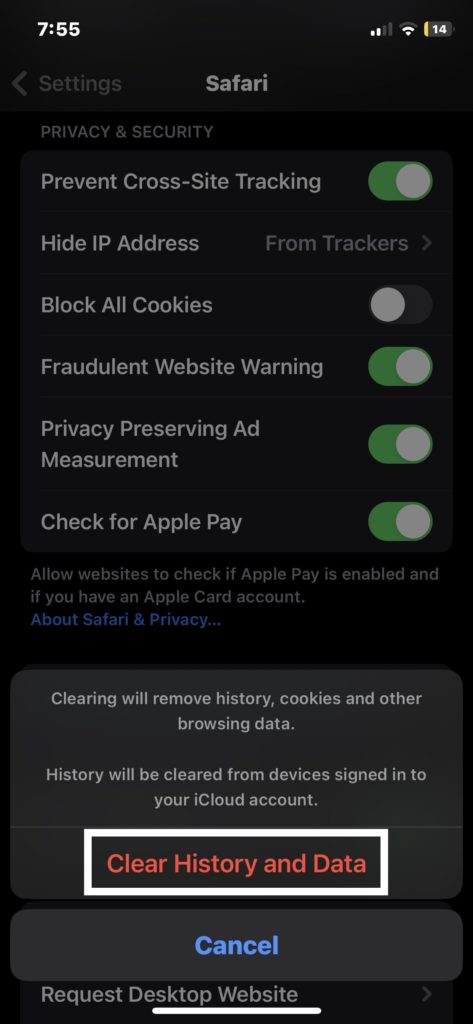
- A confirmation pop will appear on the screen; tap on Clear History and Data to clear the app cache.
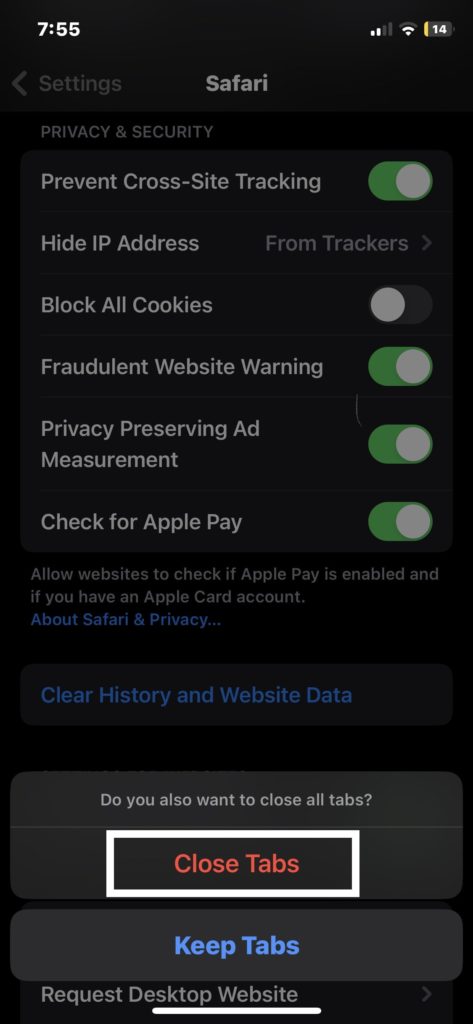
- If you have any tabs open in Safari, you will get another confirmation pop-up: Close Tabs or Keep Tabs . Select one of these options.
2. Clear the Cache Of Google Chrome On the iPhone
Below are the steps to clear the app Cache in Google Chrome.
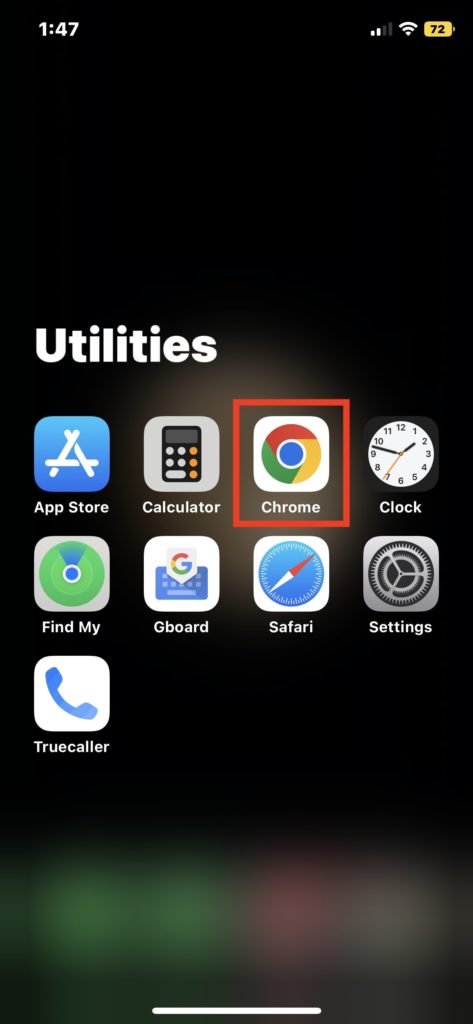
- Open Google Chrome on your iPhone.
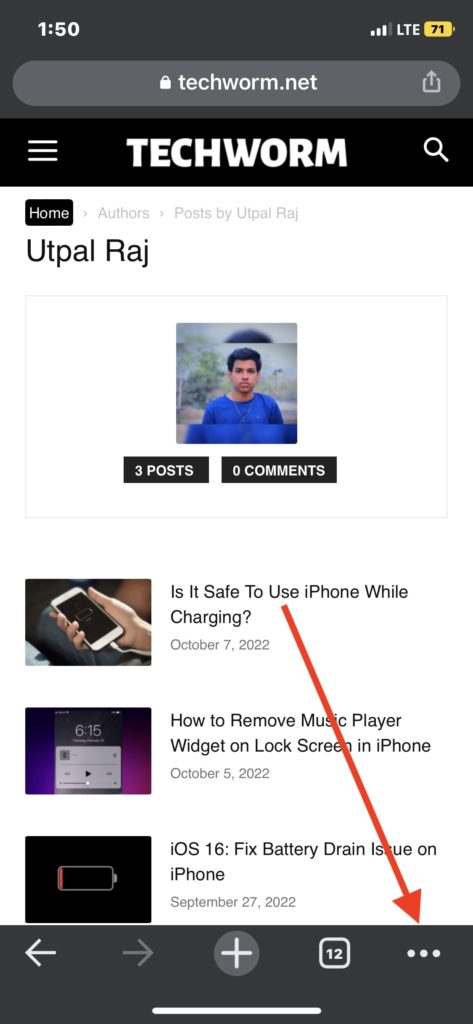
- Now, tap on the three-dot icon at the bottom right corner.
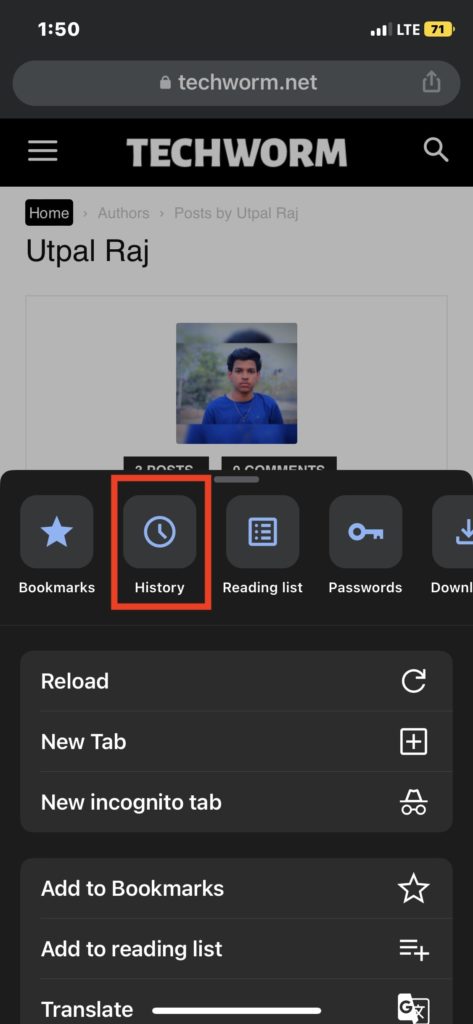
- On the next screen, tap on History .
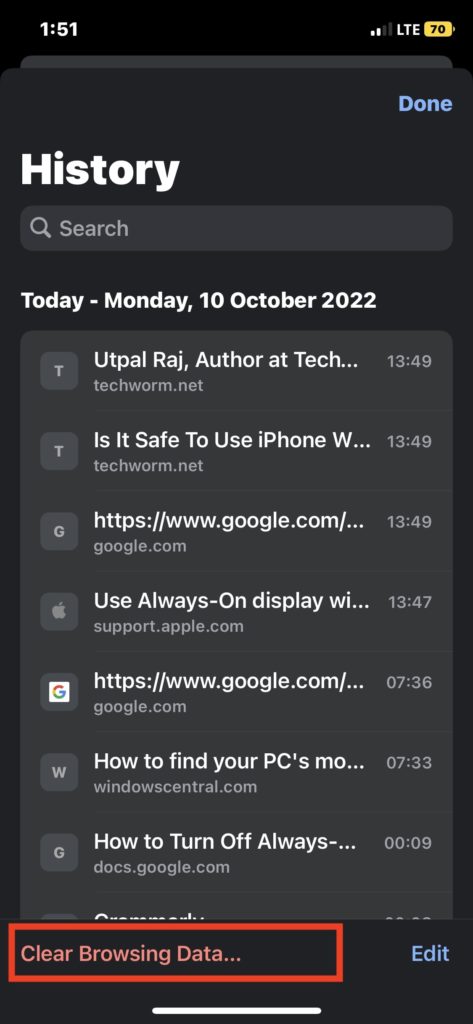
- On the History page, Tap on Clear Browsing Data in the bottom right corner.
- Select the Time range as All time and then check every option Browsing history, Cookies, Site Data, Cached Images, and Files, Saved Passwords, and Auto-fill data.
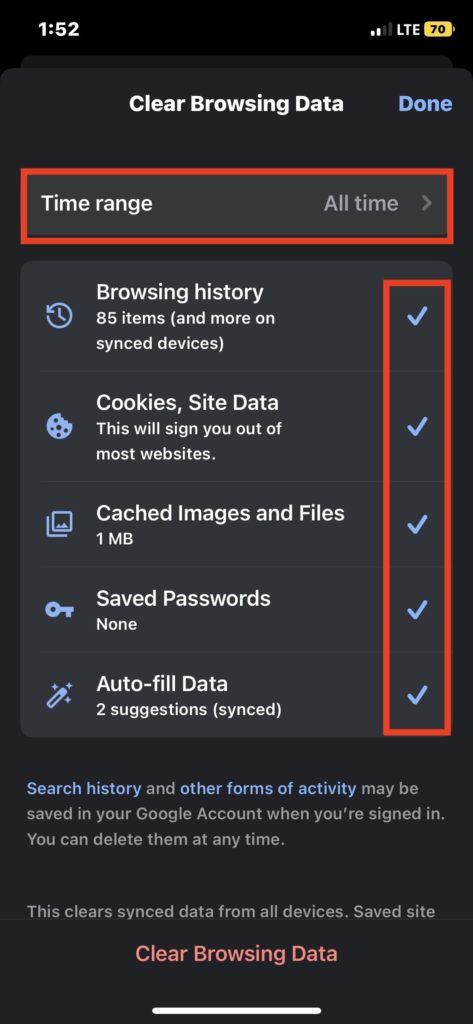
- After selecting, tap on Clear Browsing Data.
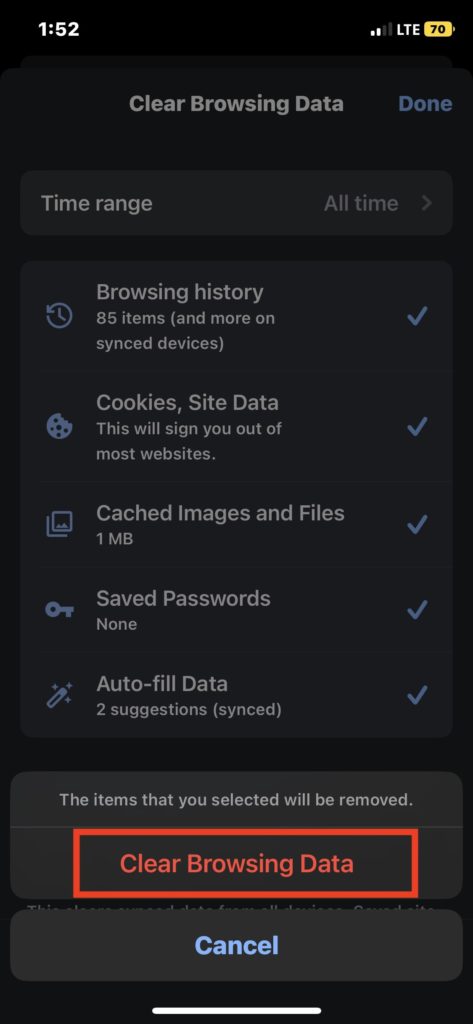
- A pop-up will appear at the bottom of the screen tap on Clear Browsing Data to give the final confirmation.
5. Use Third-Party Apps To Clear iPhone Cache
If none of the above methods worked for you, there are a few third-party apps you can use to clear the app cache on your iPhone.
Some apps require an essential subscription for this. But most third-party apps don’t need any subscription.
Final words
The above ways will help you clear the app cache on your iPhone without deleting the app.
When running out of storage on your iPhone, try the above methods to delete unwanted files or caches.
