Windows XP was released over two decades ago. You can still use the legacy operating system again for any reason whether it be using the old laptop or to relieve old memories.
All we need is to download Windows XP ISO from a reputable place, create a bootable USB/CD and then install it on the PC.
It powered most ATMs worldwide until a couple of years ago, and many still rely on it. Moreover, several medical and healthcare software was also supported by XP only.
The last service pack, the famous Windows XP SP3 , solved almost every problem an average user had with Windows.
You can download Windows XP ISO file in English and Spanish from the links given below. The links are free to use and are not blocked anywhere.
After downloading XP, you can rely on Rufus, a bootable creator for Windows OSes, to create bootable media. Virtual machine users can skip directly to the installation and start using the legacy OS.
- Download Window XP ISO (Service Pack 3) Direct Download Link
- Create Windows XP Bootable USB/CD
- Clean Install Windows XP ISO
- Download Windows XP FAQs
Download Window XP ISO (Service Pack 3)
Direct Download Link
Microsoft has stopped offering XP for download. Here are direct download links for Windows XP ISO Service pack 3. Both 32-bit and 64-bit Windows XP are available.
| Windows Version | Windows XP ISO |
|---|---|
| Size | 560 MB; 594 MB |
| Language | English |
| Service Pack | SP3 |
| Version | 32-Bit 64-Bit |
| Windows Version | Windows XP ISO Spanish |
|---|---|
| Size | 560.3 MB; 660.4 MB |
| Language | Spanish |
| Service Pack | SP3 |
| Version | 32-Bit 32-Bit Alternate Link |
Also Check – Find out if your computer is currently running 32-bit or 64-bit through this guide by Microsoft . There used to be an official link to download Windows XP ISO from the Microsoft website. It was removed after the OS was officially discontinued, along with its support. Now, this is the only way to download Windows XP SP3.
While it may sound unnecessary, here are the recommended system requirements for running Windows XP.
It comes in handy when running it on a virtual machine, and you must allot RAM, storage, and cores, amongst other things.
| Processor | 300 MHz+ on a Single core |
|---|---|
| RAM | 128 MB or higher |
| Hard disk space | 1.5 GB |
| Display Resolution | 800×600 pixels or higher |
| Video | SVGA-capable video card |
Create Windows XP Bootable USB/CD
Once the ISO file is downloaded, it’s time to create Windows XP Bootable USB/CD or even a DVD if other sources are unavailable.
We can create bootable media that can be used to install Windows XP on single or multiple computers on a network.
Prerequisites
- Windows XP ISO file
- Install Rufus (portable version is available)
- A 2 GB USB drive or a Blank CD/DVD
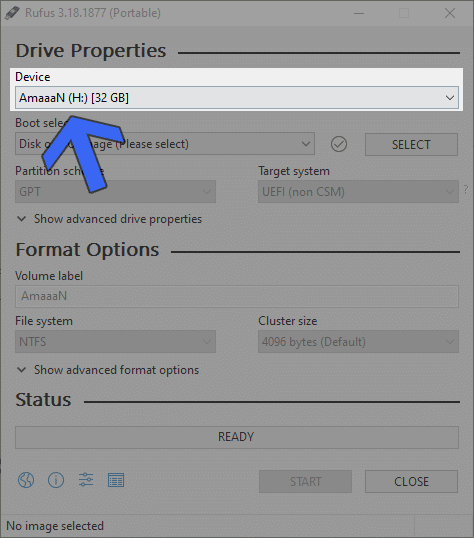
Launch Rufus and select your plugged-in CD/DVD or a USB drive. Anything with 1 GB of space would do it.
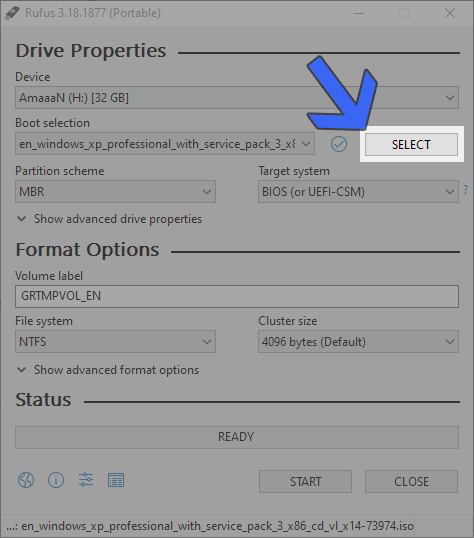
Next, locate the downloaded Windows XP ISO through the select button in boot selection.
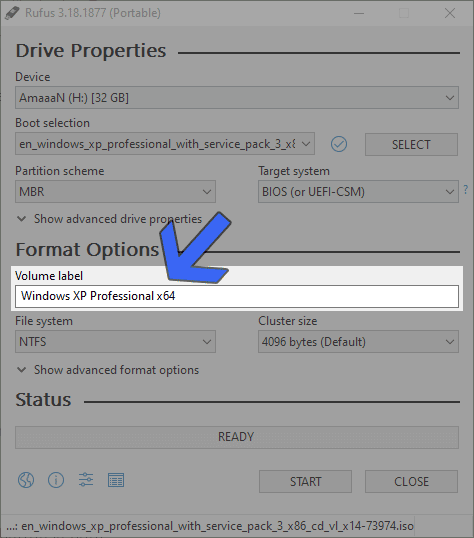
- A volume label option will appear after loading and scanning the ISO. Fill in any name for your bootable device.
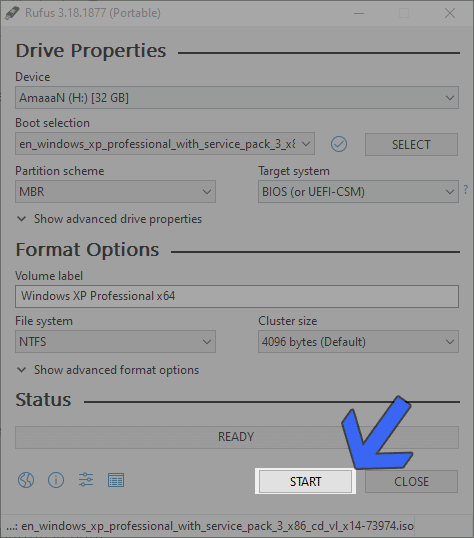
- Everything is set; click the START button to start the bootable creation process.
- Now wait, and a warning prompt will appear. Click on OK to confirm and finally begin the process. It will take a minute or two, depending upon the speed of the bootable media.
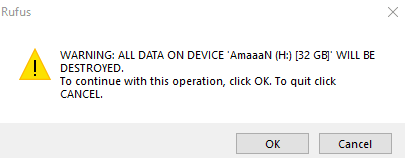
Generally, the CDs and DVDs are slower as the data needs to be written on them through the burner. The hard disk’s read speed will also contribute to the time, but it shouldn’t take long as the size is under 700 MBs.
Clean Install Windows XP ISO
Creating a Windows XP bootable media was easy; now, let’s install Win XP on the computer in these easy steps.
Mount the ISO image if you are installing it on a virtual machine. You will need to restart and boot with the USB or CD/DVD for computers.
Every computer has a different keyboard shortcut for accessing the boot menu key. It will vary according to the laptop and manufacturer, so we have listed the ones from major companies.
Laptops
| Brand | Boot Menu Key |
|---|---|
| ASUS | F8 |
| Acer | F12 |
| Dell | F12 |
| HP | F9 |
| Lenovo | F8, F10, F12 |
Desktops
| Motherboard Brand | Boot Menu Key |
|---|---|
| ASUS | F8 |
| Gigabyte | F12 |
| MSI | F11 |
| Intel | F10 |
| ASRock | F8, F11 |
| Biostar | F9 |
We will not boot using the bootable media and install Win XP on the computer. Here is how it is done.
- Insert the Windows XP bootable and select it as the booting device.
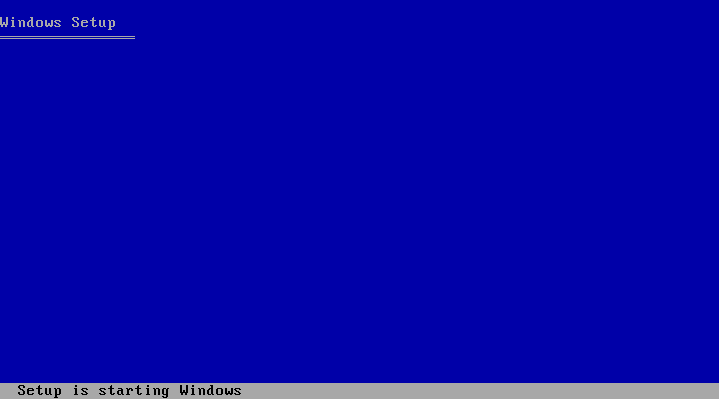
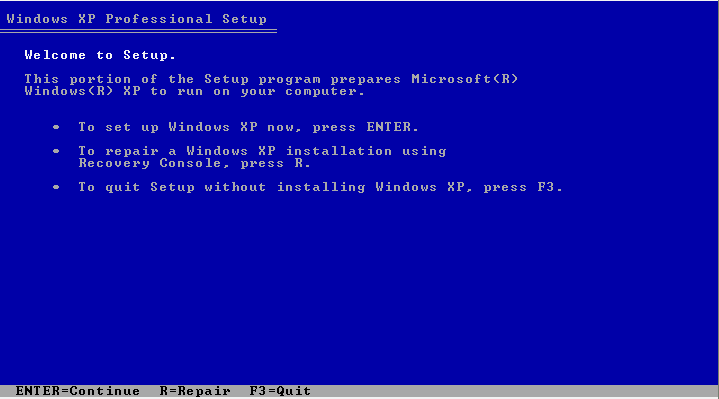
- Press ENTER from the list of options to set up Windows.
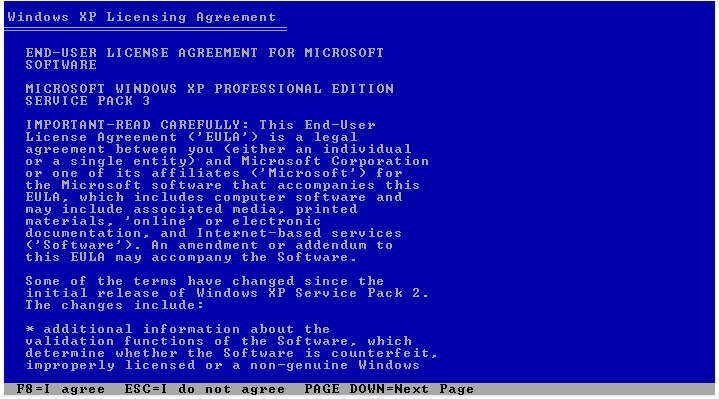
- On the next screen, accept the terms and conditions by pressing F8 on the keyboard.
- Next up, we have the partition formatting page. Select the partition or unallocated space and press ENTER . You can either select an existing partition or create a new partition from the unallocated space.
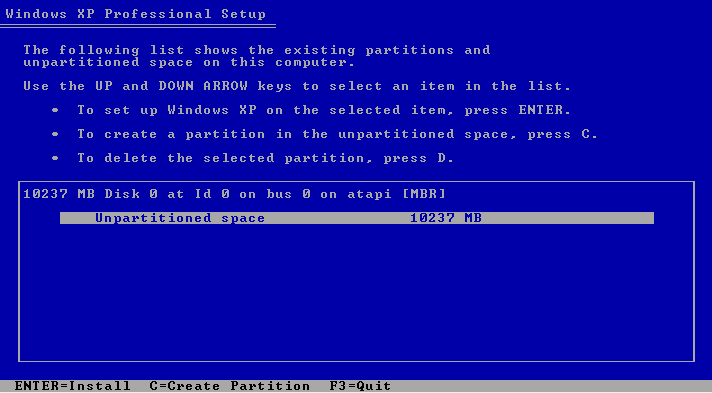
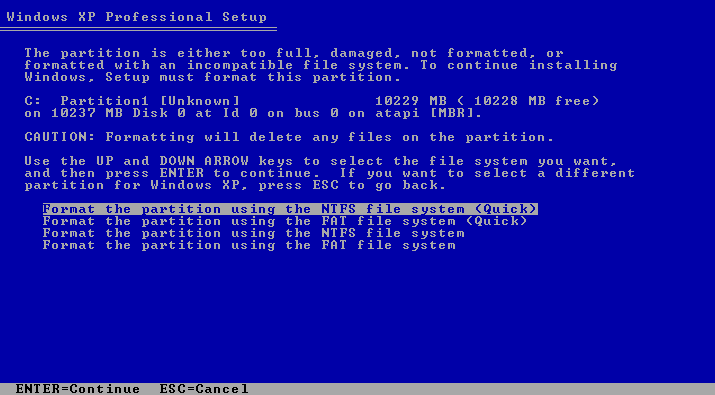
- Select Format the partition using the NTFS file system (Quick) to proceed
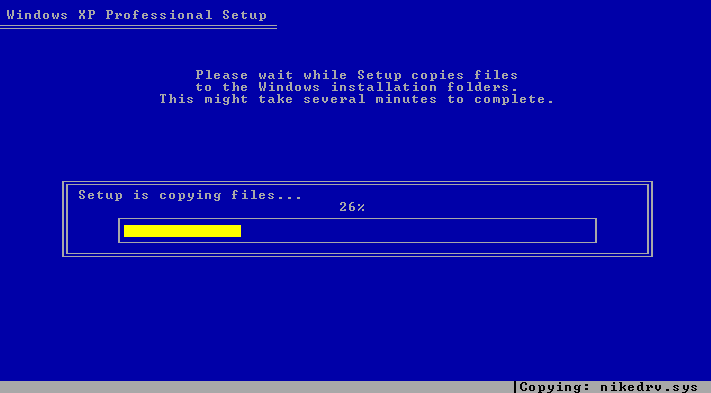
- The Windows XP installation process will begin shortly after formatting the storage or creating a new partition from the unallocated space, as per the instruction.
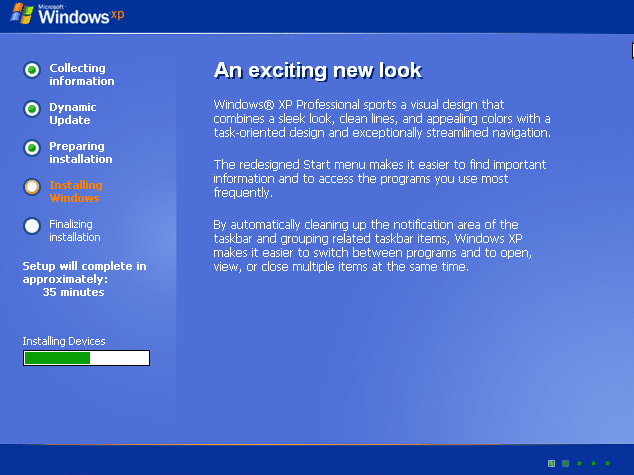
- The installation process will take a couple of minutes, depending upon the storage’s speed. SSDs will be the fastest, followed by single platter HDDs.
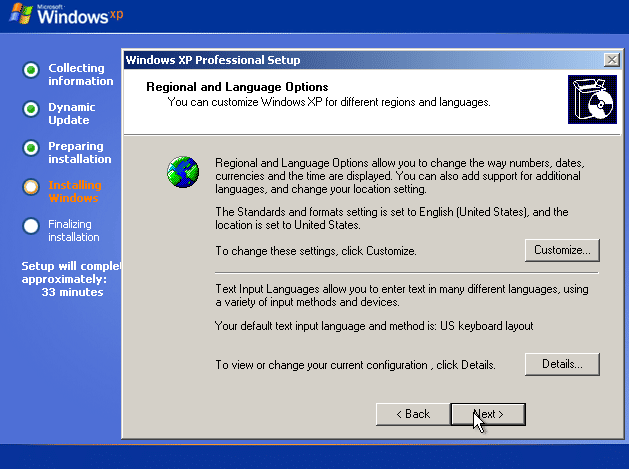
- Configure your date, time, and keyboard layout in this section. The default settings are taken from the internet if connected through ethernet(wired). Click on Next to proceed.
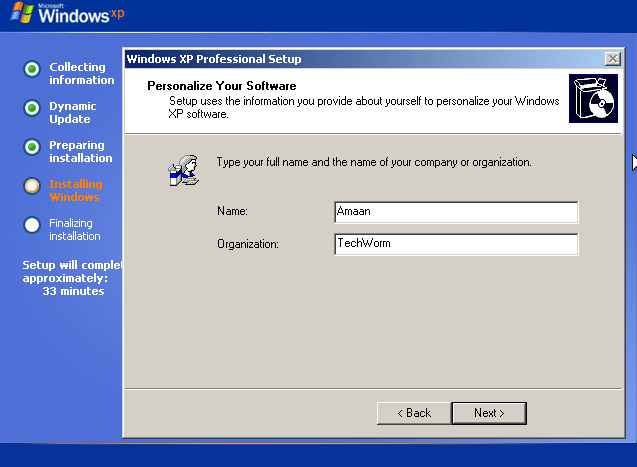
- Type in your name and organization(if applicable). This will be used in naming your computer, e.g., Amaan’s Computer.
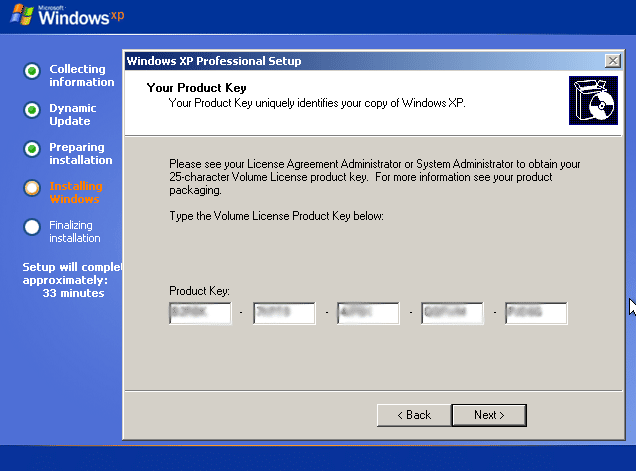
- Enter the Windows XP CD Key on the screen and click NEXT to proceed.
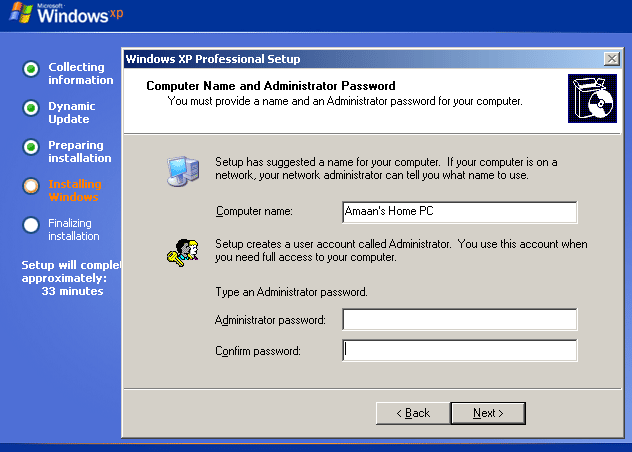
- Here, you have to give a name for the computer and set a password, which will be prompted when logging in and doing tasks requiring administrative rights. You can leave the administrator password blank, and it will not be prompted in the future unless configured.
Select the timezone and date in the next section. There is also an option for daylight saving adjustments applicable in a few parts of the world.
On the next screen, configure network settings. Keep it typical if you are unsure of what it is about.
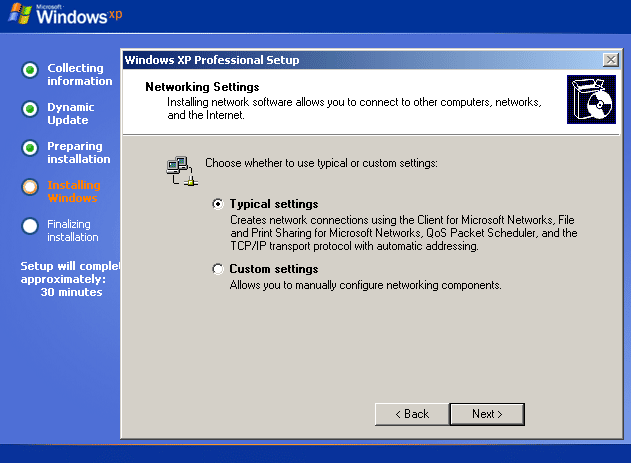
Now you can sit back and let the installation process do its thing. The computer will be restarted a couple of times, and the display will also be calibrated.
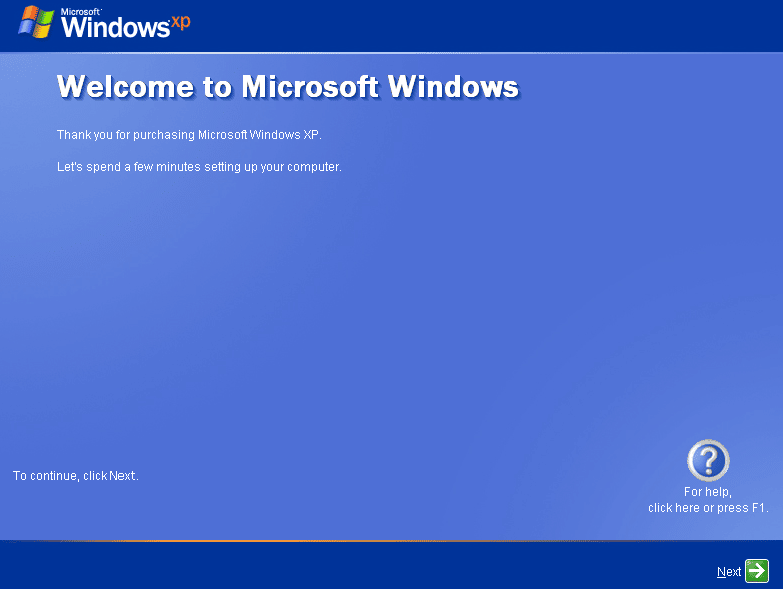
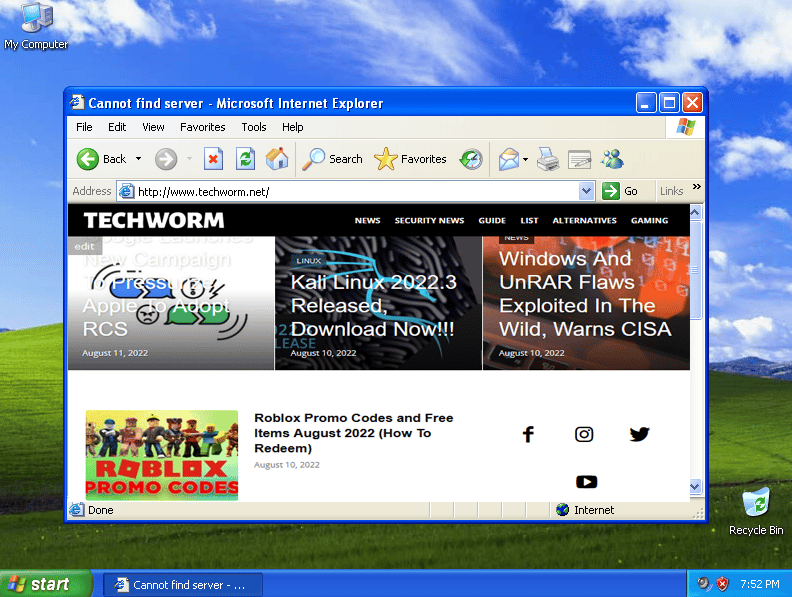
Be prepared to be welcomed by an onboarding menu where you will set up different users for the computer and internet connectivity options. Then we will land on Windows XP’s desktop.
Over to You
Download Windows XP ISO using the above-given links. Create a bootable while at it using Rufus and start installing XP right away without waiting for any expert.
All the download links are safe to download and verified by us.
Keep a CD key or license txt key handy because otherwise, the installation process will get stuck midway.
These Windows XP ISO files are genuine and from Microsoft ‘s official servers. They have been added to the Internet Archive’s digital library to preserve the veteran OS.
YES; Windows XP was released in both 32-bit and 64-bit. You can find its link in the third paragraph above.
Is Windows XP free to download now?
No, Windows XP is not free to download now. Many websites are offering it for educational purposes but the copyrights still remain with Microsoft.
Windows XP requires a minimum of 64 MB RAM. Anything above 128 MB would be enough for the 32-bit version. To be safer, install 1 GB RAM for 64-bit Windows XP, which would require more memory for its programs.
You absolutely can upgrade from 32-bit to 64-bit. Before moving forward, check whether your processor supports 64-bit architecture. Use this freeware third-party application GSC to determine the capacity of the CPU.
Microsoft discontinued Windows XP in 2009 and ended its support in 2014. There will be no updates for Windows XP in any manner. Users can continue to use the operating system, but there is an added risk of getting exposed to newer vulnerabilities.
The last Service Pack, the SP3, is unavailable on any of the Microsoft channels. The XP ISO images are sourced from the official channels, and by entering the CD KEY, you can legally use the operating system.
Windows XP does not include drivers like Windows 7 , 8, or 10. Head to your motherboard or laptop manufacturer’s website to find the appropriate drivers. They are generally in the support section of the model.
