When ChromeOS first came out, it created a lot of buzz. But that was shortlived as Google decided to make it exclusive to Chromebooks, a specific line of notebooks running the Google OS.
Seeing the piqued interest in the new OS, Google decided to create an alternative version of ChromeOS.
First, they started with CloudReady but Google wrapped it up soon.
Now we have ChromeOS Flex, taking elements directly from CloudReady. It supports over 550 different computers.
Just like its predecessor, you can run it low low-end PCs and laptops and use it as your daily driver for most work.
So don’t wait and download ChromeOS Flex on your device. Be it a Windows-based PC, laptop, Mac, or virtual machine, it can be installed on many machines or environments.
Then we will create a bootable for installing or running it as live USB. Without that, you won’t be able to run/install the OS.
After that, you can install it on your computer just like a regular operating system. All you need is a Google account and a stable internet connection.
- Download Chrome OS Flex ISO Older versions of ChromeOS Flex ISO
- Install ChromeOS Flex on PC Create ChromeOS Flex Bootable Clean Install ChromeOS Flex on PC Frequently Asked Questions How do I install ChromeOS Flex directly How to download ChromeOS Flex without USB? Do Android apps work on ChromeOS Flex? Is CloudReady and ChromeOS Flex the same? Are ARM-based PCs compatible with Chrome OS Flex? Get The Best of ChromeOS Flex
Download Chrome OS Flex ISO
Older versions of ChromeOS Flex ISO
ChromeOS Flex Requirements
Install ChromeOS Flex on PC
Create ChromeOS Flex Bootable
We have downloaded the ChromeOS Flex BIN file but it will not just get installed on its own. You will need to create a ChromeOS Flex bootable media(flash drive or DVD) and boot it on your Windows computer or Mac.
P.S. – We tried Chromebook Recovery Utility but it doesn’t seem to work now
In order to do that, you can do it using Rufus, which is a free tool for creating bootable media. Here is how you can do it.
Plug in your flash drive with 8 GB of free space
Install and launch Rufus on your computer (you can use the portable version)
Select the flash drive on which you want to create ChromeOS Flex bootable
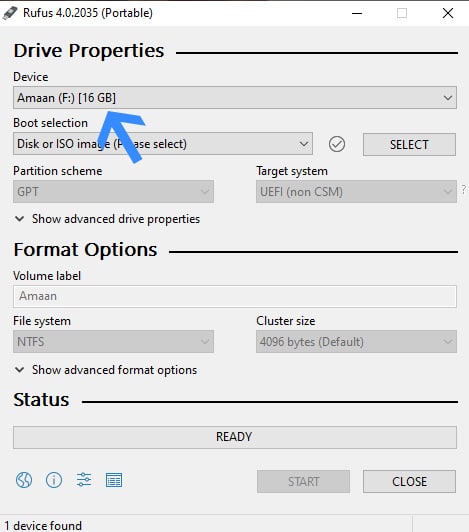
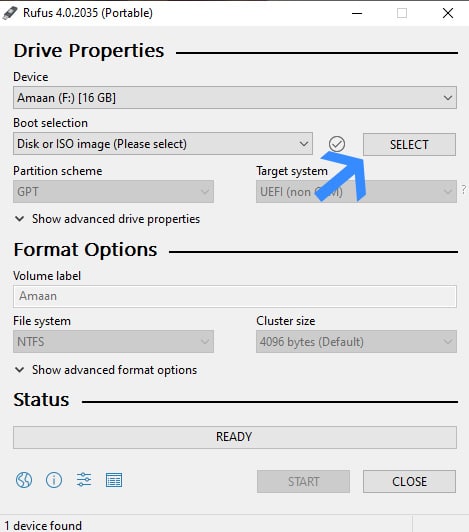
- Then import your ChromeOS Flex ISO file from your local storage through the Select button.
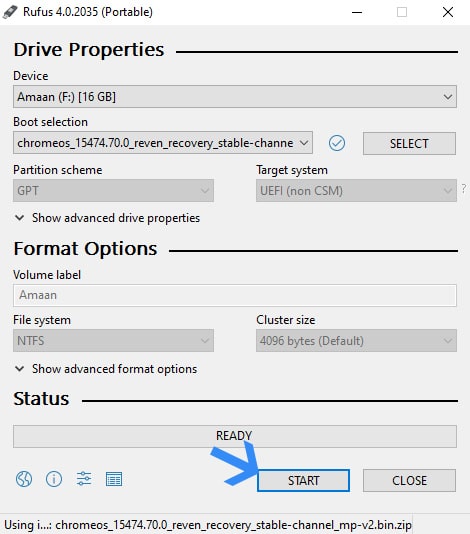
- Now click Start at the bottom to start the bootable creation process. It will be completed in a couple of minutes.
Clean Install ChromeOS Flex on PC
Now we will install ChromeOS Flex on the PC. It is a straightforward process with few choices to make along the way before you land on the desktop.
Make sure to have a Google account ready because you need that to sign in and import settings. Here is how you can install ChromeOS flex.
Laptops
Desktops
Plug in your ChromeOS Flex bootable and then restart your computer.
Boot from the flash drive with ChromeOS Flex and it will load files for a couple of seconds
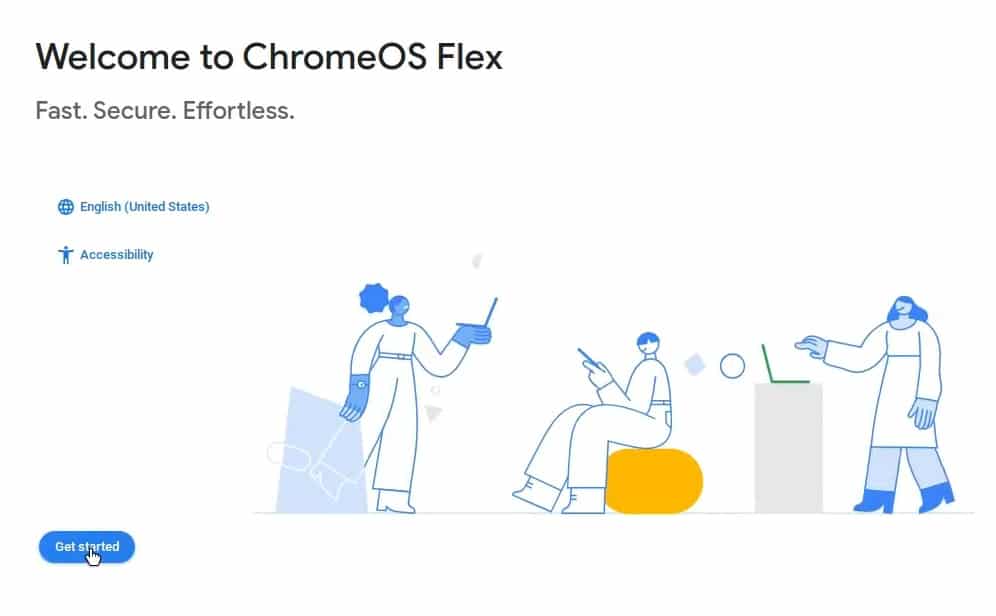
Select a language, that is set to English by default, and then Click Get Started. You can change the language if needed.
- Select Install ChromeOS Flex and then click Next at the bottom.
Alternatively, you can also choose the second option, Try it first , to get a feel of the operating system before installing it.
After that, you can sign out and then install the operating system.
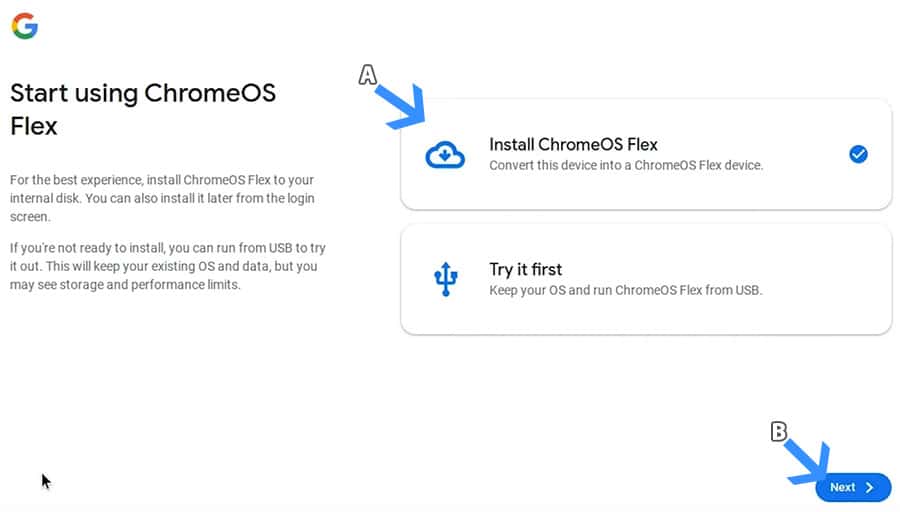
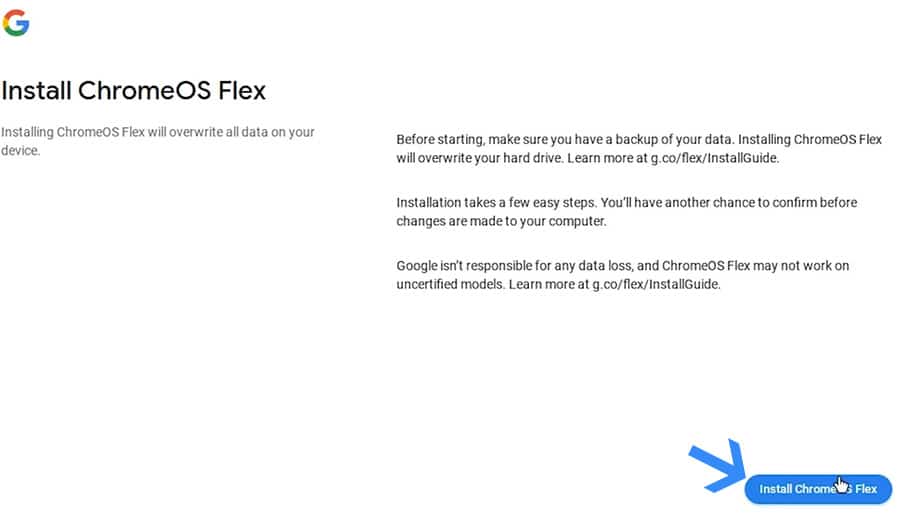
- Click Install ChromeOS Flex button at the bottom.
This page will remind you to back up your data before moving forward.
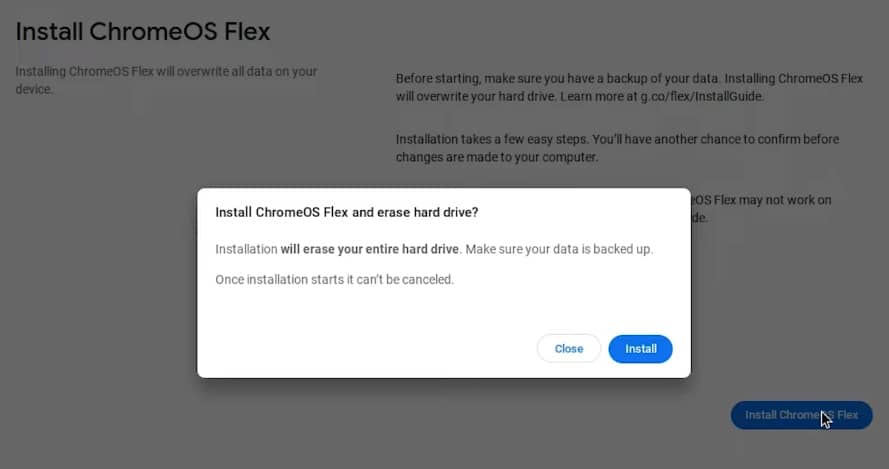
- Now click Install with the final confirmation for starting the actual installation.
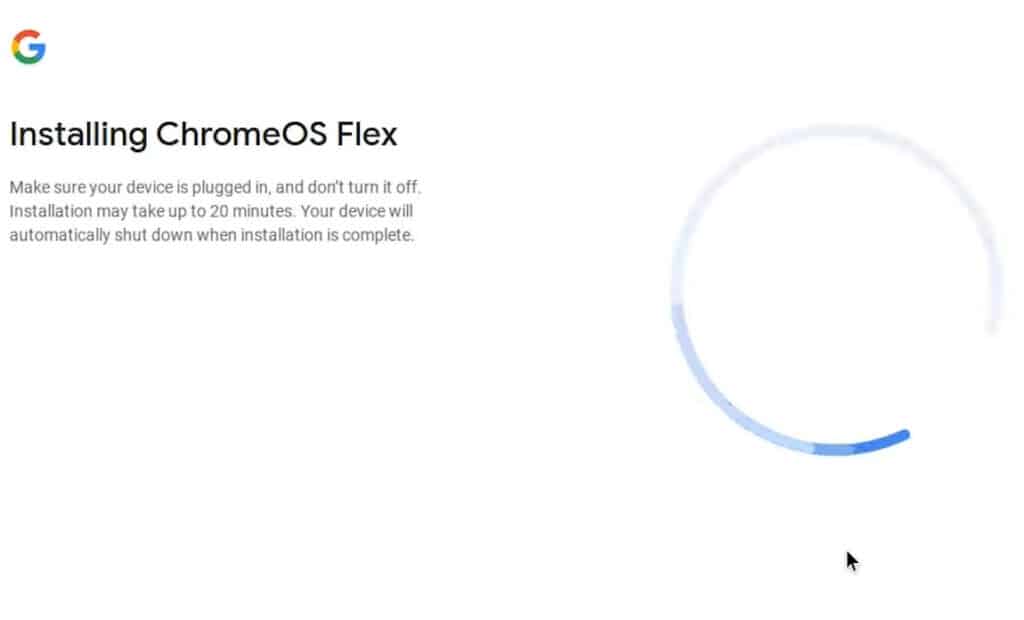
- The ChromeOS Flex installation will take up to 20 minutes and you see this screen. The time will also depend upon your hard drive’s writing speed.
- Once installation is complete, you will get a competition message on the screen. Now your computer will restart in a minute, while you can remove the bootable USB/flash drive.
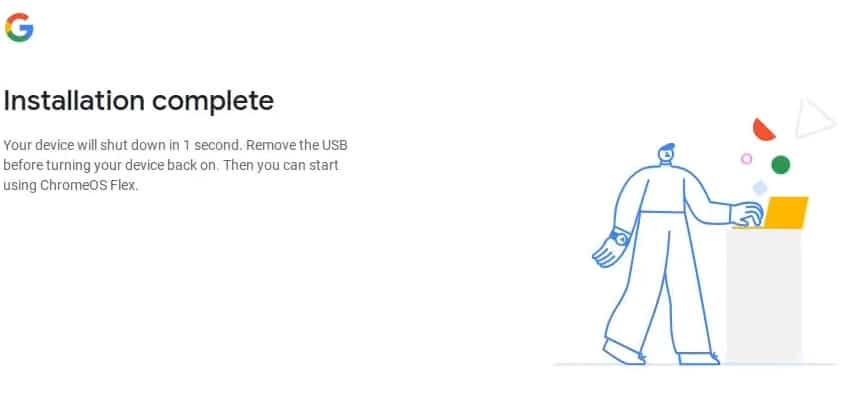
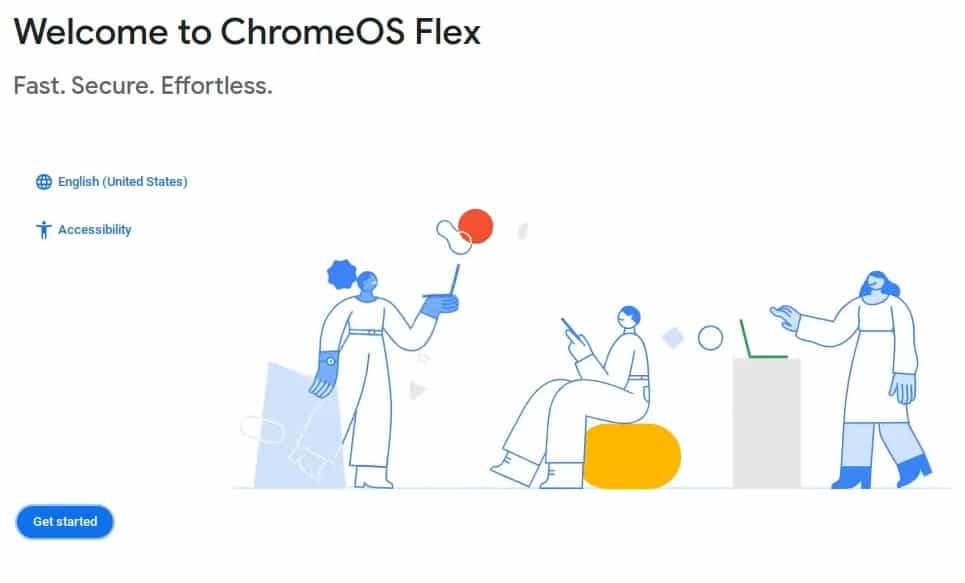
- After the restart, select the language again and then click Get Started to start the brief setup process.
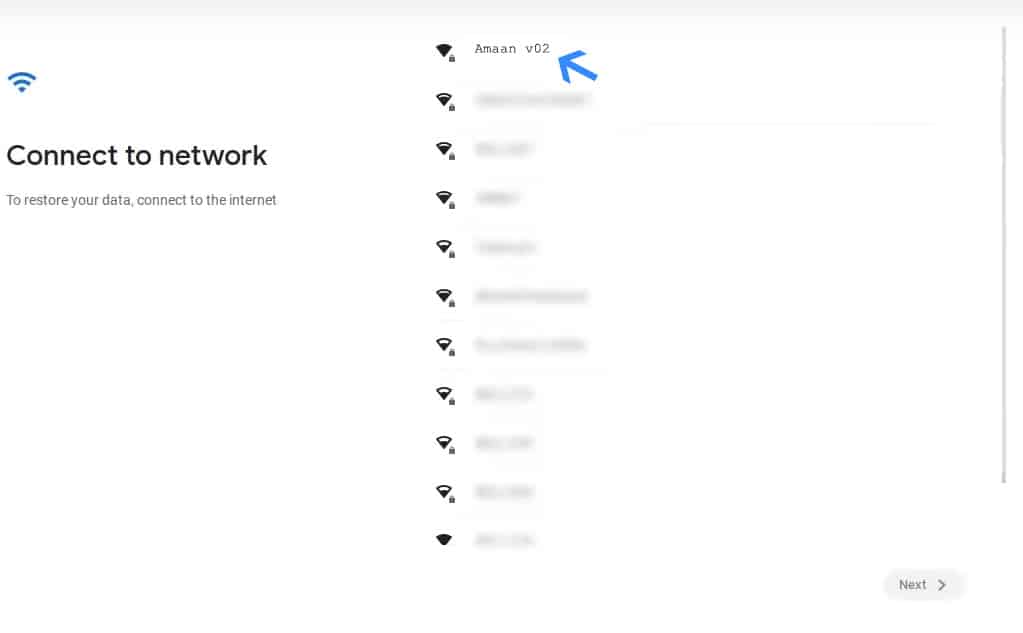
- Connect to your WiFi network, if you are on wireless. Or, if you are ethernet-based wired internet then it will automatically get connected to it. [8]
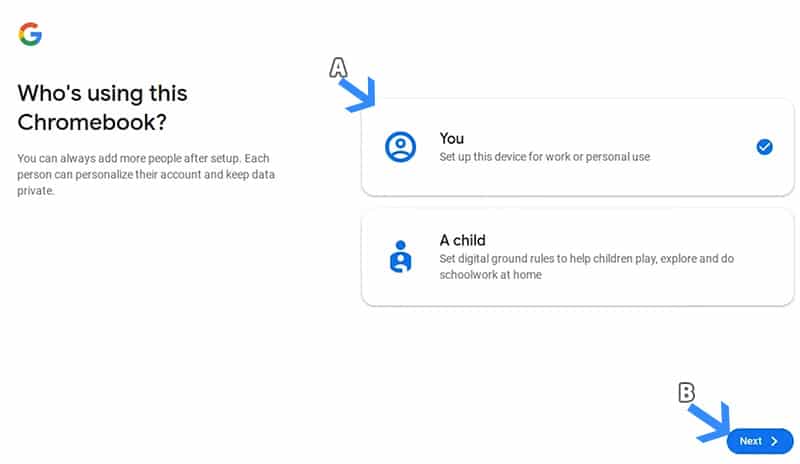
- Select You as the user of ChromeOS Flex and then click Next to move forward.
- Enter your Google account credentials, which include an email and the password.
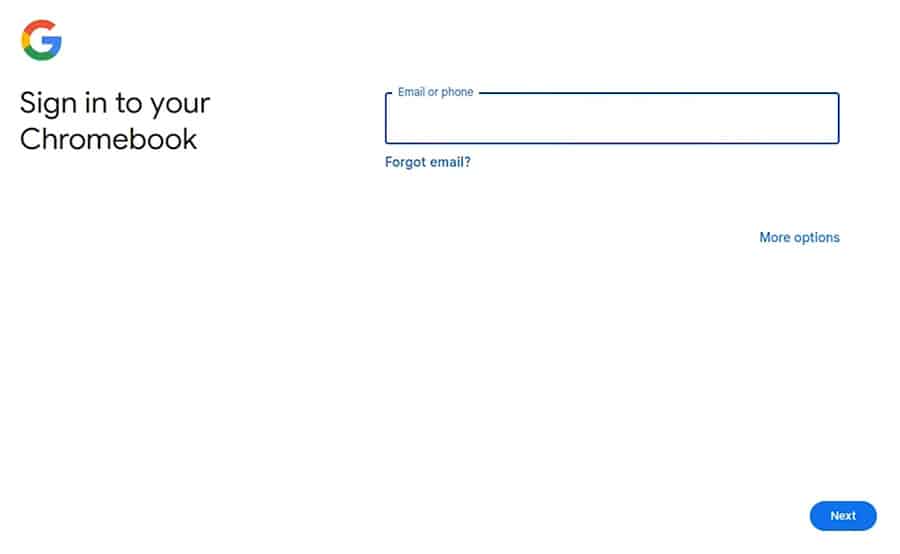
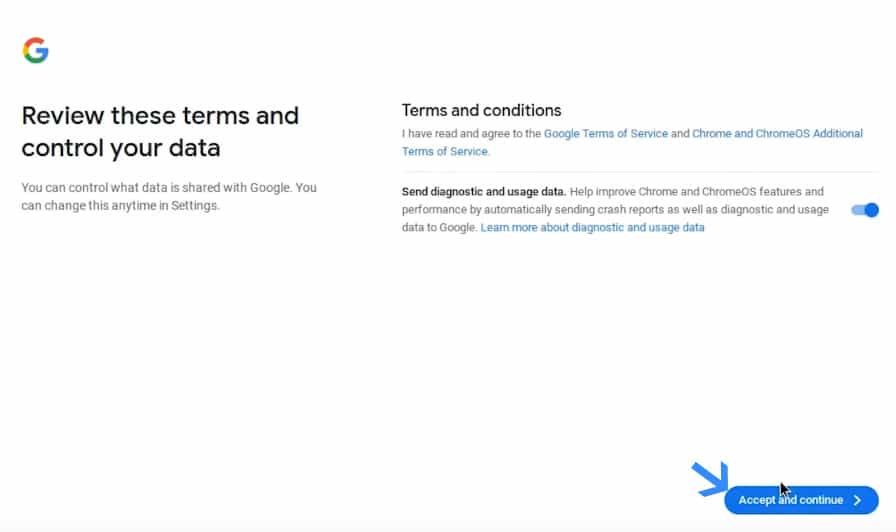
- Click continue unless you want to send your diagnostic data to Google. Then you can untick it before clicking on Accept and continue .
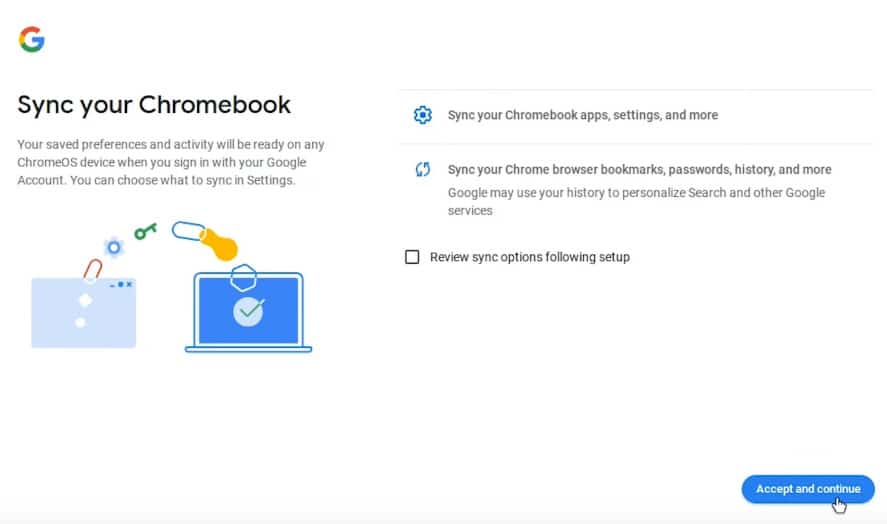
- Again on this page, click Accept and Continue as it will import your Chrome settings, history, and other Google data to the ChromeOS Flex.
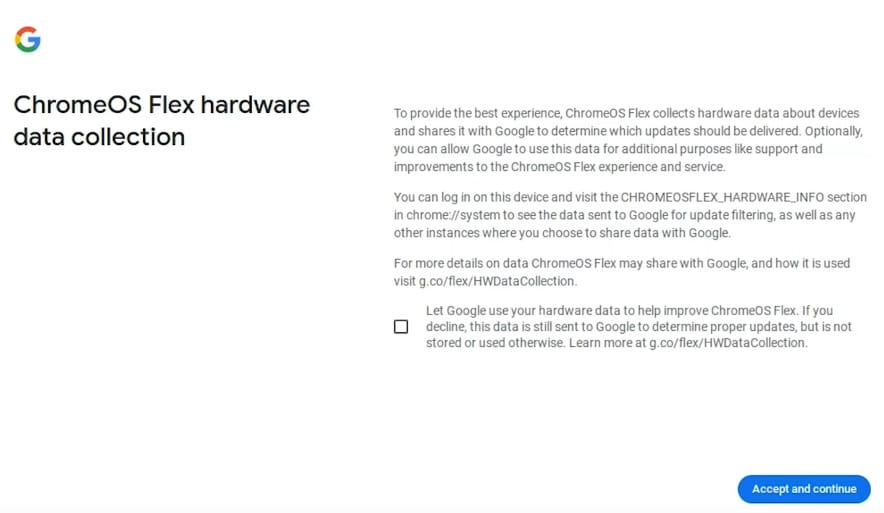
- Untick the checkbox here and click Accept and Continue .
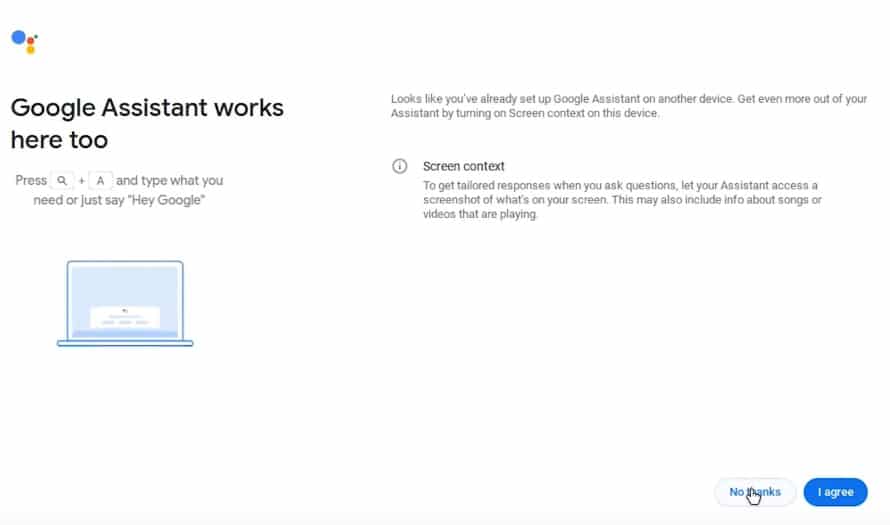
- Click No Thanks on the screen asking for setting up Google Assistant.
But if you want to set it up right away then connect a microphone and then click I agree .
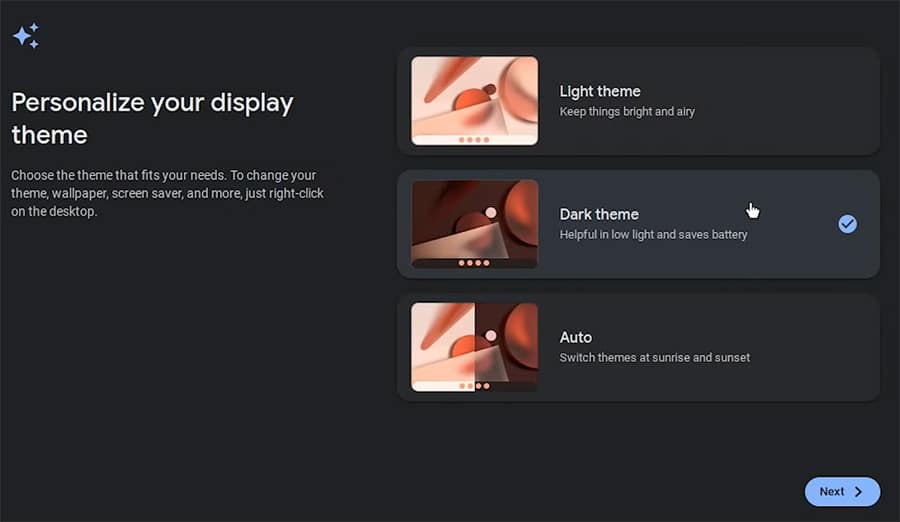
- Now select the theme for your ChromeOS Flex. It can be either Dark or White. If you are unsure then leave it to automatic , which switches between the two at Sunrise and Sunset.
- You will finally land on the desktop. ChromeOS Flex is installed successfully and you can start using it.
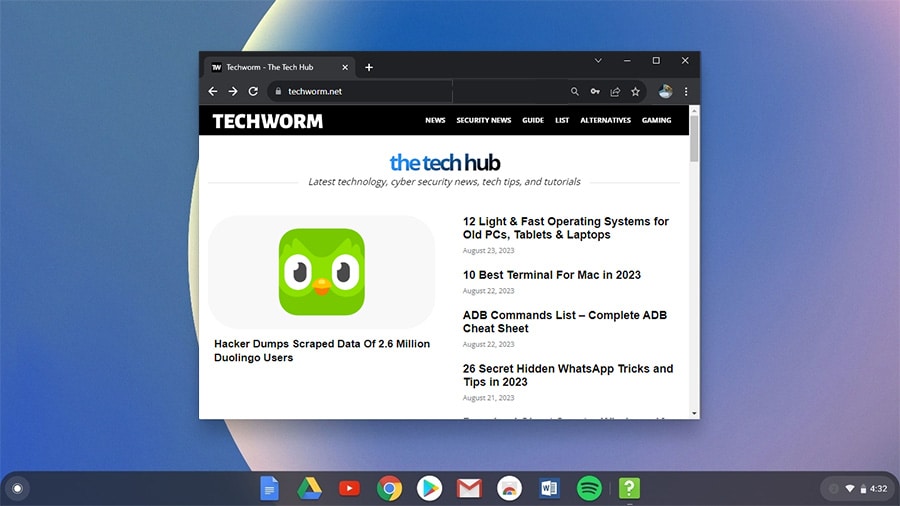
You can install Chrome web apps to add more functionalities to the operating system. There is a lengthy process but you can install a couple of Linux apps as well.
How do I install ChromeOS Flex directly
You can install ChromeOS Flex directly using the tutorial we have discussed above. It covers every step on the way and you won’t feel lost at any point.
How to download ChromeOS Flex without USB?
You can download ChromeOS Flex through the download links mentioned above. They are the latest version and newer updates are added in the section as they arrive.
Do Android apps work on ChromeOS Flex?
The short answer is No. Android apps don’t work on ChromeOS Flex like they do on Chromebooks, as discussed in detail here .
Is CloudReady and ChromeOS Flex the same?
CloudReady was developed by Neverware, a subsidiary of Google before it was shut down. ChromeOS Flex borrows a lot of things from CloudReady and is the official successor of it.
All the users on CloudReady are gradually being upgraded to ChromeOS Flex through updates.
Are ARM-based PCs compatible with Chrome OS Flex?
ARM-based computers are not compatible with Chrome OS Flex as of now. If Google extends support then we will let you know.
Get The Best of ChromeOS Flex
This is how you can download ChromeOS Flex file on your computer. It is in BIN format so don’t worry as its the standard format from Google.
You can create ChromeOS Flex bootable media using any software. We used Rufus because its easy and free.
