Android emulators let you run an Android environment on a PC, so you can install apps from the Play Store, run APKs, play games on a larger screen, and even test apps without needing a physical Android device.
Emulators can be resource-intensive, especially when running heavy apps or games. Hence, finding an emulator that runs smoothly on low-quality hardware isn’t easy.
If you’re on a low-end PC such as an Intel Core 2 Duo E7500, 2GB RAM, and a 500GB HDD , chances are you’ve faced lag, crashes, or performance issues.
To fix this, you’ll need an Android emulator that performs well on low-end PCs.
We tested 20+ Android emulators on several older low-end PCs and laptops. After all the testing, we found eight emulators that perform well on low-end PCs.
This article covers a rundown of each one and other key details you should know.
- How we picked the best Android emulators for low-end PCs
- Best Android emulators for low-end PCs 1. MEmu 2. LDPlayer 3. BlueStacks 4. Mumu Nebula 5. GameLoop 6. Android Studio 7. Bliss OS 8. Waydroid
- Wrap Up
How we picked the best Android emulators for low-end PCs
While there are many Android emulators available, not all perform well on low-end PCs—or even work at all.
To ensure the best possible experience, I tested multiple emulators on a low-end PC and handpicked the top eight based on the following criteria
- Low System Requirements We picked emulators that work well with minimal RAM (2–4GB) and older CPUs (dual-core or equivalent), so you get a smooth experience on low-end PCs without performance issues.
- Performance Optimization Our roundup focused on lightweight emulators with minimal background processes for faster performance. Some options were prone to lag during our testing on low-end PCs, and based on user feedback from online forums, we excluded those to bring you the 8 best choices.
- No Bloatware or Annoying Ads We avoided emulators that force-install toolbars, extra software, or flood the interface with ads.
- Android Version Compatibility Our roundup also focused on emulators supporting older Android versions (Android 7–9) since they use fewer resources than newer builds.
- Simple and Easy to Use We selected emulators with intuitive interfaces and avoided those with complex setups. We included one option for developers and another for Linux users, though these may be more complex for those without development experience or Linux know-how.
- Multi-Tasking Without Overload We selected emulators that support multiple Android instances without slowing down your system, allowing seamless multitasking in the Android environment with minimal lag.
Best Android emulators for low-end PCs
Here are the best Android emulators for low-end PCs in terms of compatibility and performance.
They also come with handy features to improve your emulation experience.
| Emulator | Features | Minimum Requirements | Android Version | Price |
|---|---|---|---|---|
| MEmu | Multiple instances, Tab-based multi-app management, Handy features to improve emulation | 2GB RAM, Dual-core CPU, 5GB free disk space, Latest Windows with DirectX 11, OpenGL 2.0, VT enabled | Up to Android 12 | Free |
| LDPlayer | Intuitive UI, Snipping tools, Remote access, Multiple instances | 2GB RAM, Dual-core CPU, 36GB free disk space, Graphics driver with OpenGL 2.0, VT enabled | Up to Android 9 | Free |
| BlueStacks | Customizable keymapping, Multi-instance sync, High-performance modes | 4GB RAM, Intel or AMD processor, 5GB free disk space | Android 7 & above | Free (Paid version available) |
| Mumu Nebula | Lightweight, Gaming optimization, Low-end PC support | 4GB RAM, Dual-core CPU, 2GB free disk space, Windows 7 or higher with DirectX 11.0 or OpenGL 4.x | Android 5–9 | Free |
| GameLoop | Optimized for Tencent games, Controller support | 3GB RAM, Dual-core CPU, 4GB free disk space | Android 5–9 | Free |
| Android Studio | App development and testing, Full control over virtual devices | 8GB RAM, 4GB free disk space (recommended) | Android 4.4+ | Free |
| Bliss OS | Open-source, Dual-boot or USB boot, Direct hardware access | 2GB RAM, 16GB free disk space | Android 9–11 | Free |
| Waydroid | Linux-based, Lightweight, No virtualization overhead | Linux OS, 2GB RAM, 4GB free disk space | Android 9 & up | Free |
1. MEmu
MEmu is one of the best-performing Android emulators for low-end PCs.
It lets you emulate the Android environment on almost any Windows-based PC with solid performance.
The emulator is easy to set up and runs smoothly after installation. With the app, you can install apps directly from the Play Store or sideload APKs, both of which work well.

However, when it comes to graphics-intensive programs like games, MEmu isn’t the most efficient on low-end PCs.
That said, it still performs well for gaming, offering up to 240fps without overloading system resources.
MEmu also comes with plenty of customization options, including key mapping for better control, full-screen or smartphone screen modes , and engine settings to tweak performance.
It supports DirectX and OpenGL for graphics rendering, giving users flexibility based on their PC’s capabilities.
Key Features
- Runs multiple Android instances (up to Android 12).
- Tab-based multi-app management for smooth switching.
- No need to disable Core Isolation (Windows Security).
| Pros | Cons |
|---|---|
| Free and lightweight, great for low-end PCs. | Installs bloatware during setup. |
| High compatibility with most apps and games. | Can struggle with demanding applications on weak hardware. |
2.LDPlayer
LDPlayer is a lightweight and efficient Android emulator for Windows.
It lets you run Android 5.1, 7.1, and Android 9 environments, making it useful for testing apps or playing mobile games on a PC.
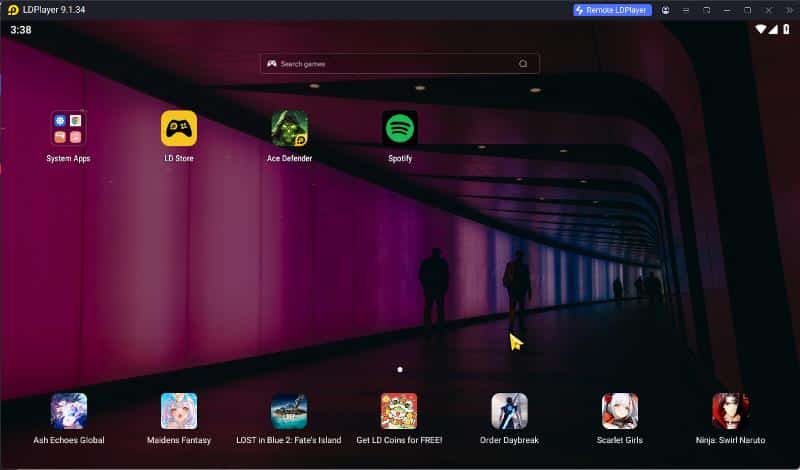
You can install apps via APK, use its built-in store to download games, or access the Play Store—though we ran into installation issues, likely due to our PC setup.
Performance is decent, with support for up to 240fps in intensive applications.
The emulator is easy to use, offers customization options, and includes tools like a screenshot feature and video recorder.
However, unlike MEmu, which features a tab-based app switcher for easy navigation, LDPlayer lacks this functionality.
Key Features
- Simple, clean UI with gaming optimizations.
- Supports multi-instance (Android 9, 64-bit).
- Built-in snipping tool and remote access.
- Dedicated game store.
| Pros | Cons |
|---|---|
| Free and optimized for gaming performance. | Ads appear in the interface. |
| Smooth multi-instance support. | Limited to Android 9 for 64-bit apps. |
3.BlueStacks
BlueStacks is one of the safest and most trusted Android emulators.
While some think it struggles on low-end PCs, its minimum requirements support low-end hardware.

The emulator has a simple, intuitive interface. Most menus are accessible from the side panel and top ribbon.
You can enable full-screen mode, control volume, run multiple instances, and access recent apps—all without glitches.
It’s one of the most optimized emulators, though performance with heavy programs may vary between low-end and high-end PCs.
For gaming, it supports up to 240FPS and includes a VSync feature for a smoother experience.You can also customize performance, gaming settings, and the interface in the app settings to suit your preferences.
Key Features
- Customizable keymapping and macro support.
- High-performance modes (Eco Mode for resource saving).
- Multi-instance sync for gaming and streaming.
| Pros | Cons |
|---|---|
| User-friendly with strong developer support. | High RAM and CPU usage. |
| Excellent gaming performance (supports 120 FPS). | Includes aggressive ads for in-app purchases. |
4.Mumu Nebula
Mumu Nebula is a lightweight Android emulator built for low-end PCs.
It’s easy to use and comes with features that enhance the emulation experience.
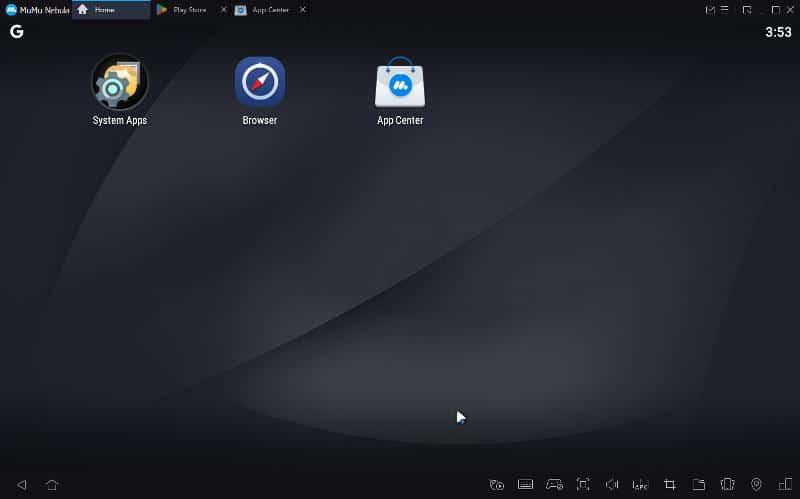
In my testing, the app ran smoothly and allowed me to install apps from the Play Store and APK files without issues. Most games performed well, but some experienced occasional lag.
One of its standout features is the tab-style app switcher, which makes it easy to run multiple apps or games and switch between them.
It also includes a built-in in-game recorder, gamepad support, and customizable keyboard and mouse mapping.
Key Features
- Designed for low-end PCs.
- Lightweight with minimal system impact.
- Focused on gaming stability.
| Pros | Cons |
|---|---|
| Runs smoothly on older hardware. | Lacks advanced features. |
| Free and easy to set up. | Android version updates are slower. |
5.GameLoop
If you need an Android emulator to play games like Call of Duty Mobile, PUBG Mobile, and other mobile titles on your PC, GameLoop might be your best option.
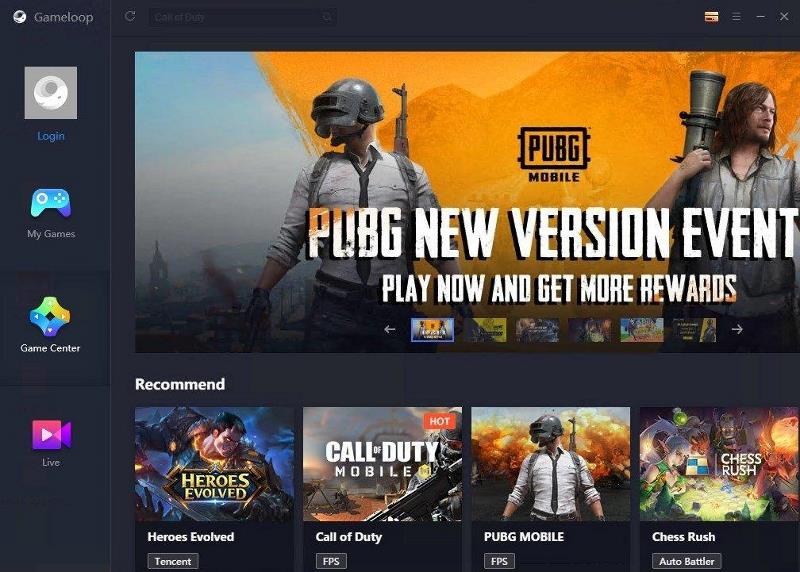
GameLoop is a free emulator with a user-friendly interface. It supports many Android games and ensures top performance while running them.
While it works on low-end computers, it does require a graphics card. This is because it’s optimized specifically for gaming, unlike other emulators on this list.
Key Features
- Officially optimized for PUBG Mobile, Call of Duty: Mobile, and other Tencent games.
- Controller support and customizable key layouts.
| Pros | Cons |
|---|---|
| Best emulator for Tencent games, minimal lag. | Limited use outside gaming. |
| Stable high FPS and performance. | Ads and promotional content. |
6.Android Studio
MyAndroid Studio isn’t an emulator but a full-fledged IDE by Google that lets you simulate an Android environment on your PC.
It’s mainly for developers who need to build, test, and debug Android apps, whether on a low-end or high-end system.
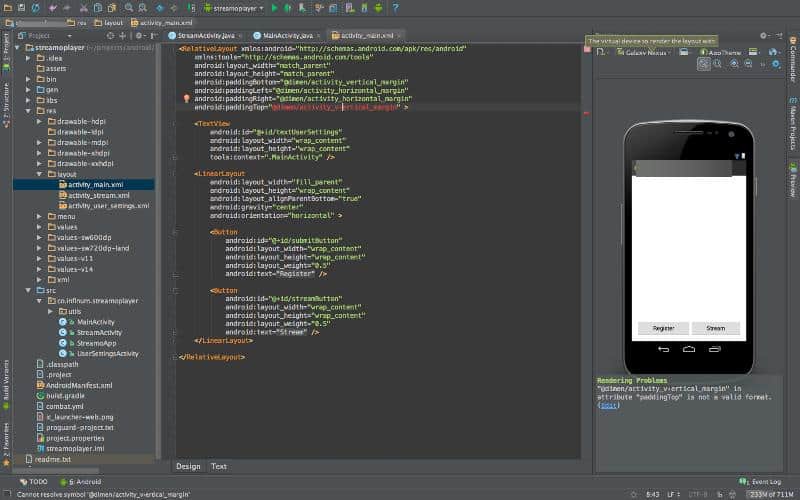
The software is free to download and always includes the latest Android version for testing. While it’s desktop-based, there’s also a web version for those who prefer an online setup.
Some of its key features include a built-in emulator, AI-powered code suggestions, and a real-time profiler for optimizing app performance.
It also supports multiple device configurations, making it easy to test apps across different screen sizes and hardware.
Key Features
- Designed for developers to test apps.
- Full control over RAM, CPU, and storage settings.
- Advanced debugging and profiling tools.
| Pros | Cons |
|---|---|
| Pure Android experience with no bloatware. | Not optimized for gaming. |
| Ideal for app development and testing. | Slow and resource-heavy. |
7.Bliss OS
Bliss OS is another way to run an Android-based operating system on a PC, similar to an emulator.
However, instead of simulating an Android environment, you’re installing it directly, making it suitable for both low-end and high-end PCs.
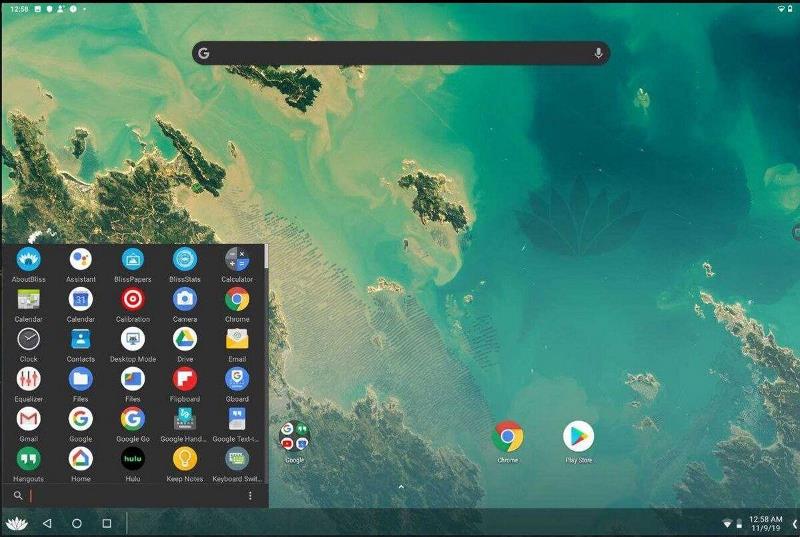
This open-source, customized Android OS can be run through a bootable USB drive or installed on a virtual machine. Both methods let you run Android apps and games on your PC.
For the best performance, the bootable USB option is recommended since it runs the OS directly on your hardware rather than through a virtual environment.
Key Features
- Runs Android natively on x86 hardware (dual-boot or USB boot).
- Fully open-source and customizable.
| Pros | Cons |
|---|---|
| Direct hardware access for better performance. | Requires technical knowledge to set up. |
| Privacy-focused, no ads or bloatware. | Limited app compatibility for non-gaming use. |
8.Waydroid
Waydroid is an open-source Android emulator built specifically for Linux-based systems. If you’re familiar with Linux, this is a great option.

Unlike traditional emulators, Waydroid uses Linux containers and the Android framework to run Android apps natively on Linux PCs.
This lightweight approach delivers near-native performance and deep integration with the host OS.
As long as your PC can handle simple apps, it should run apps with similar requirements on Waydroid without performance lag or other issues.
Key Features
- Linux-based Android container for smooth integration.
- Runs Android apps like native Linux applications.
| Pros | Cons |
|---|---|
| Lightweight, open-source, and efficient for Linux users. | Only available for Linux, not Windows/macOS. |
| No virtualization overhead, better performance. | Limited GPU acceleration affects gaming. |
Wrap Up
Having covered the best Android emulators for low-end PCs, it’s worth noting that emulation doesn’t usually demand much from your system—unless you’re running resource-heavy apps like Call of Duty.
If you’re using Android emulation for everyday apps, the options we’ve discussed should work just fine.
However, for heavy programs, you might face performance issues, depending on how low-end your PC is.
